

How to use the Crop tool
The Crop tool trims the picture to a box you choose. It can keep a set ratio, straighten a tilted photo and square up something shot at an angle.
Where to find it
It is in the toolbar, in one slot with Slice and Slice Select. Right-click the slot, or press and hold it, to choose between them. Press C to pick it, and Shift+C to step through the other tools on that key.
How to use it
- Choose the tool. Press C. A box covering the whole picture is ready at once.
- Pick a ratio. Leave Ratio on Free, or choose one such as 1 : 1 (square) or 16 : 9.
- Adjust the box. Drag its edges or corners, drag inside it to move it, or drag on the picture outside it to draw a new one.
- Apply. Press Enter or click the tick button. Esc resets the box.
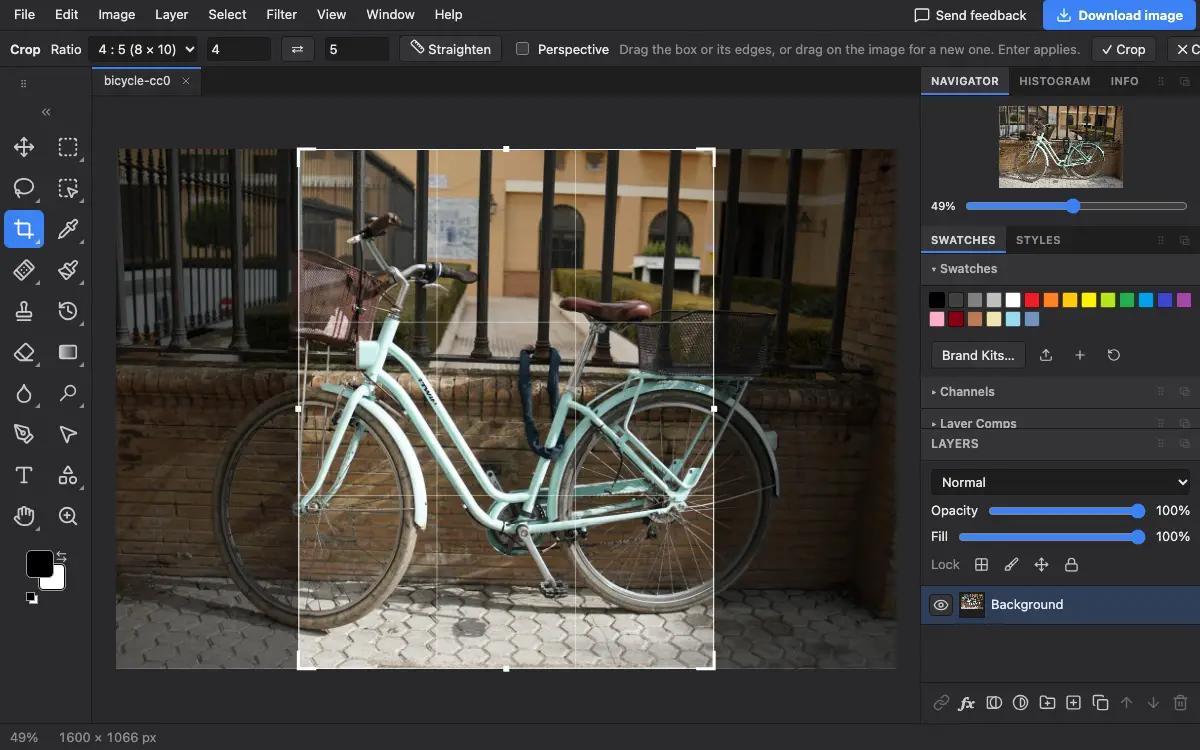
Options bar settings
Tips and common mistakes
- Shift while dragging a corner keeps the box at its current shape.
- The box cannot reach past the picture. To add space around it, use Image → Canvas Size….
Questions
Can I crop to an exact size in pixels?
Set the ratio with W × H… to the shape you want, crop, then set the exact pixels with Image → Image Size….
Related
Photostar is a free online Photoshop alternative that runs in your browser. There is no account to make, and your files stay on your device.
Checked in the current editor.