

How to use the Rectangular Marquee tool
The Rectangular Marquee tool selects a rectangle or a square. Whatever you do next, such as a fill, a filter or a copy, only changes what is inside it.
Where to find it
It is in the toolbar, in one slot with Elliptical Marquee. Right-click the slot, or press and hold it, to choose between them. Press M to pick it, and Shift+M to step through the other tools on that key.
How to use it
- Choose the tool. Press M, or click the dashed square in the toolbar.
- Drag a box. Drag from one corner to the opposite one. A small label shows the width and height as you go.
- Make it square if you like. Press Shift after you start dragging to keep the sides equal.
- Use the selection. Copy, fill, adjust or delete what is inside. Press Ctrl+D (Cmd+D on a Mac) to deselect.
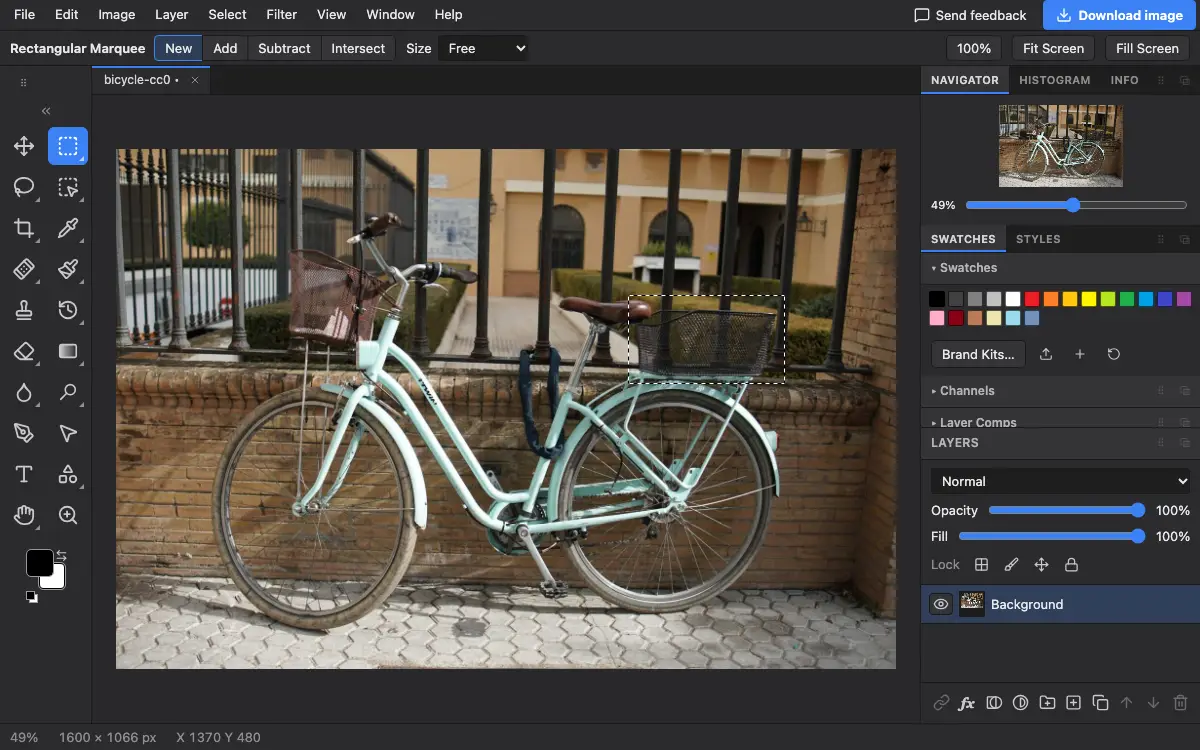
Options bar settings
Tips and common mistakes
- A single click outside the selection, without dragging, deselects.
- Holding Shift before you start dragging adds to the selection instead of making a square. Start the drag first, then press Shift.
- For a box with a set shape for printing or social media, the Crop tool has ratio presets and may be the better choice.
Related
Photostar is a free online Photoshop alternative that runs in your browser. There is no account to make, and your files stay on your device.
Checked in the current editor.