

How to use the Ruler tool
The Ruler tool measures the distance and angle between two points. It can also turn a layer so the line you measured becomes level.
Where to find it
It is in the toolbar, in one slot with Eyedropper and Color Sampler. Right-click the slot, or press and hold it, to choose between them. It has no shortcut key.
How to use it
- Choose the tool. Right-click the eyedropper slot in the toolbar and pick Ruler.
- Drag a line. Drag from one point to another. Hold Shift for 45 degree steps.
- Read the measurement. The options bar shows the angle, length and width and height of the line in pixels.
- Straighten if you want. Click Straighten Layer to turn the active layer so the line is level, or upright if it is steeper than 45 degrees.
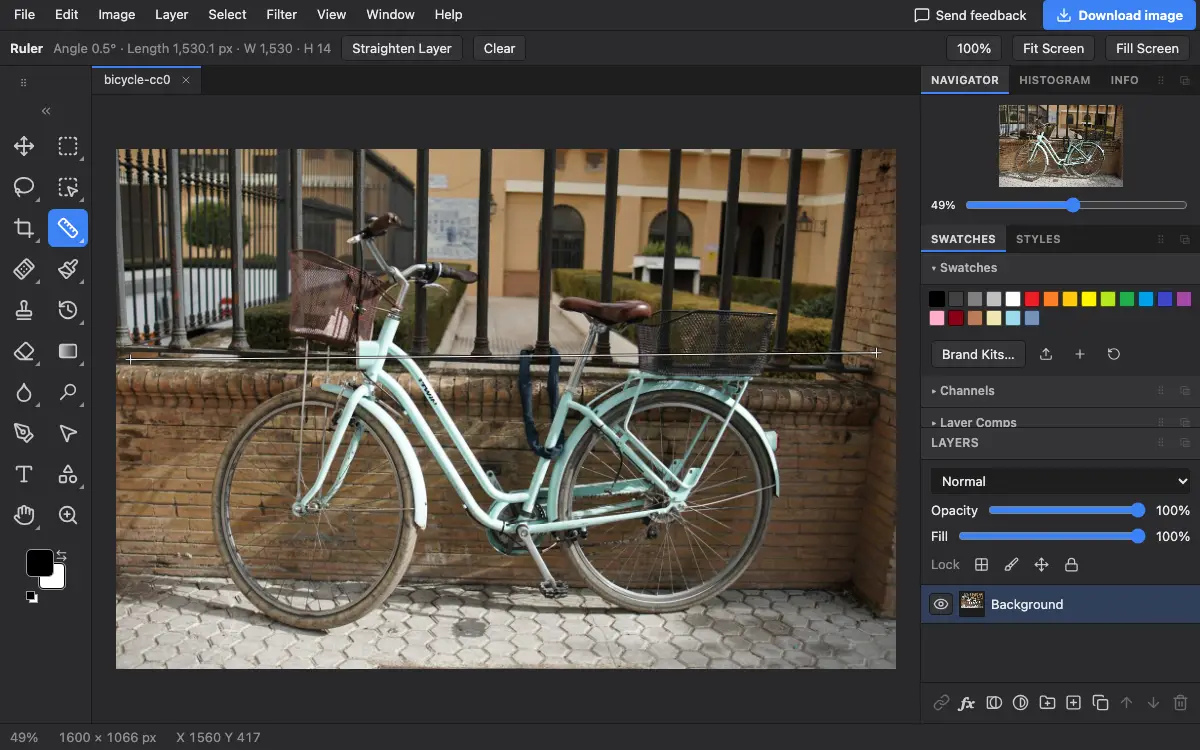
Options bar settings
Tips and common mistakes
- Straightening turns the layer but does not trim the corners. The Crop tool's Straighten option does both at once.
- For type, shapes or smart objects, use Edit → Free Transform and type the angle instead.
Related
Photostar is a free online Photoshop alternative that runs in your browser. There is no account to make, and your files stay on your device.
Checked in the current editor.