

How to use the Object Selection tool
The Object Selection tool selects the object inside a box you drag. It looks for the thing that stands out from its surroundings in the box and selects its outline.
Where to find it
It is in the toolbar, in one slot with Magic Cut, Quick Selection and Magic Wand. Right-click the slot, or press and hold it, to choose between them. Press W to pick it, and Shift+W to step through the other tools on that key.
How to use it
- Choose the tool. Press W, or click the box-with-pointer icon at the top of the selection group.
- Drag a box around the object. Keep the box close to the object, with a little space on each side.
- Wait a moment. The selection appears once the outline is found. It is worked out on your device; nothing is uploaded.
- Add or remove parts. Hold Shift and drag another box to add a missed part, or hold Alt (Option on a Mac) to take a part away.
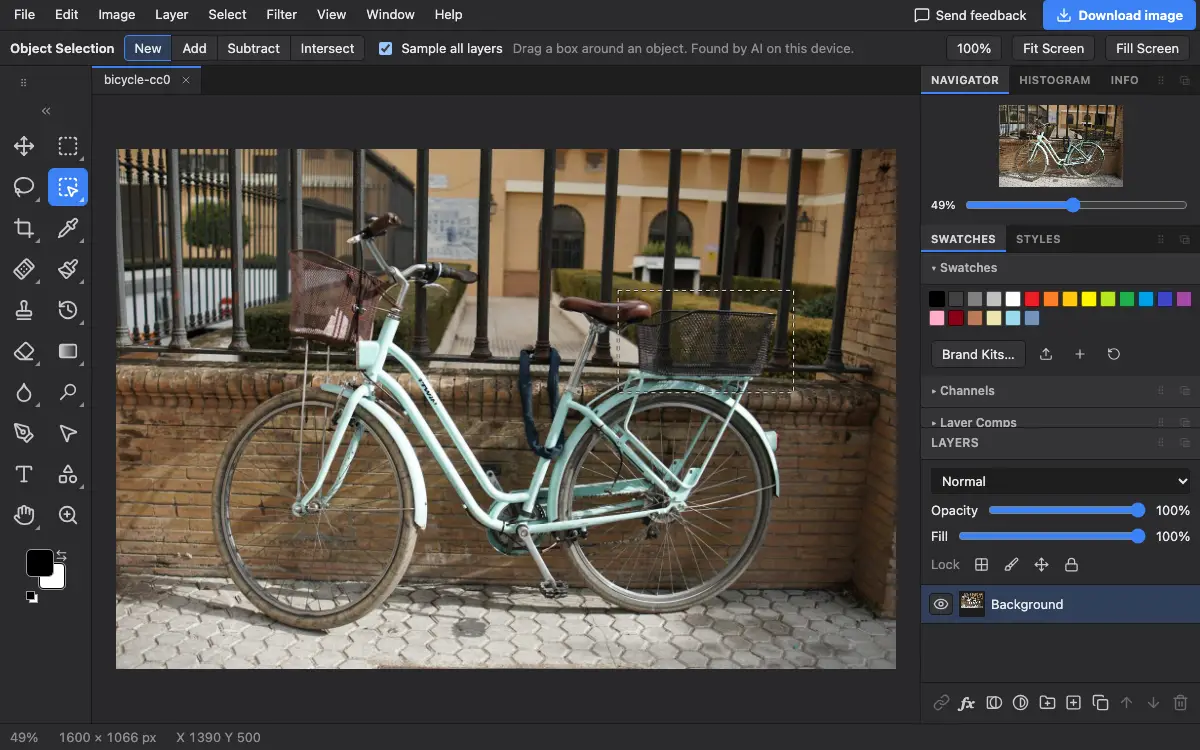
Options bar settings
Tips and common mistakes
- If it says no object stood out, draw a tighter box, or use Quick Selection for that part.
- For a person, animal or product against a background, Select → Subject or the Magic Cut tool may get the whole thing in one go.
Related
Photostar is a free online Photoshop alternative that runs in your browser. There is no account to make, and your files stay on your device.
Checked in the current editor.