

How to use the Quick Selection tool
The Quick Selection tool selects by painting: brush over an area and the selection spreads out to the nearest edges.
Where to find it
It is in the toolbar, in one slot with Object Selection, Magic Cut and Magic Wand. Right-click the slot, or press and hold it, to choose between them. Press Shift+W until it is selected (W on its own picks Object Selection).
How to use it
- Choose the tool. Press Shift+W until it is selected, or right-click the selection slot and pick Quick Selection.
- Set the brush size. Use the Size slider. A brush a bit smaller than the area works best.
- Paint inside the area. Drag across what you want. Each stroke adds to the selection, which grows to the edges it finds.
- Take back overflow. Hold Alt (Option on a Mac) and paint over parts that were selected by mistake.
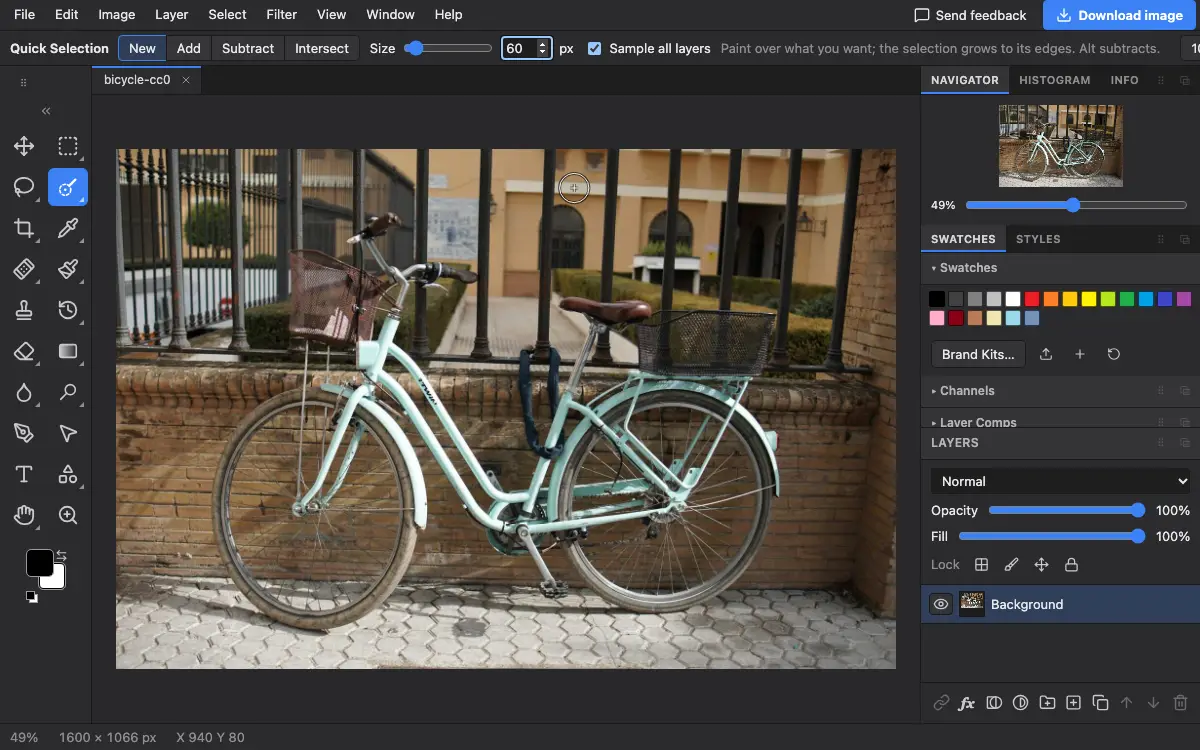
Options bar settings
Tips and common mistakes
- Small strokes near an edge are more accurate than one big stroke across it.
- For hair or fur, select roughly here, then refine the edge with Select → Select and Mask….
Related
Photostar is a free online Photoshop alternative that runs in your browser. There is no account to make, and your files stay on your device.
Checked in the current editor.