

How to use the Magic Wand tool
The Magic Wand tool selects pixels of a similar colour with one click. It is the quickest way to select a plain sky, a flat background or a solid shape.
Where to find it
It is in the toolbar, in one slot with Object Selection, Magic Cut and Quick Selection. Right-click the slot, or press and hold it, to choose between them. Press Shift+W until it is selected (W on its own picks Object Selection).
How to use it
- Choose the tool. Press Shift+W until it is selected, or right-click the selection slot and pick Magic Wand.
- Set Tolerance. Start around 32. Lower selects only very close colours; higher takes in more shades.
- Click the colour. Click on the area you want. Everything joined to it in a similar colour is selected.
- Add more. Shift-click other parts to add them, or Alt-click (Option-click on a Mac) to remove.
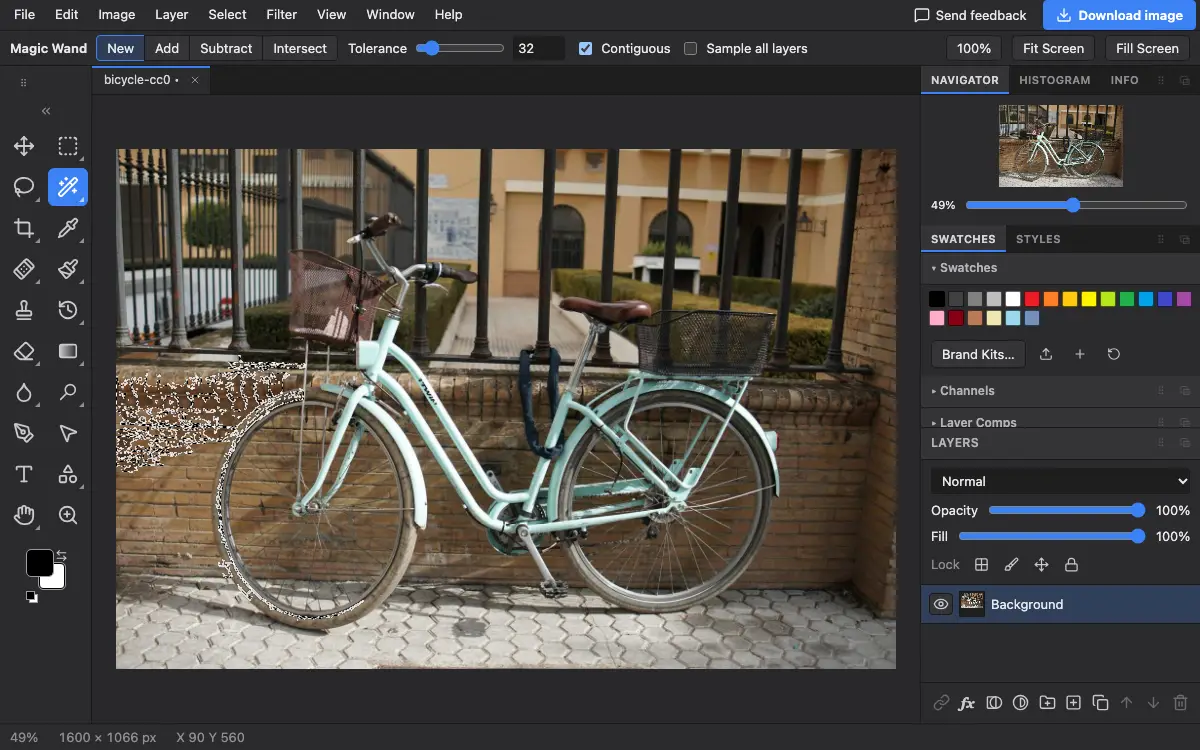
Options bar settings
Tips and common mistakes
- If the selection leaks into the subject, undo, lower Tolerance a little and click again.
- Turn Contiguous off to catch the gaps between spokes, leaves or letters in one click.
Related
Photostar is a free online Photoshop alternative that runs in your browser. There is no account to make, and your files stay on your device.
Checked in the current editor.