

How to use Magic Cut to select an object
Magic Cut selects an object from a click. An AI model running on your device finds the whole object under the pointer, and more clicks add or remove parts.
Where to find it
It is in the toolbar, in one slot with Object Selection, Quick Selection and Magic Wand. Right-click the slot, or press and hold it, to choose between them. Press Shift+W until it is selected (W on its own picks Object Selection).
How to use it
- Choose the tool. Press Shift+W until it is selected, right-click the selection slot and pick Magic Cut, or use Select → Magic Cut.
- Click the object. Click once on the thing you want. The first click loads the model, so it takes a little longer; then a blue tint shows what is found.
- Refine it. Shift-click a missed part to add it, or Alt-click (Option-click on a Mac) a wrong part to remove it. Undo click takes back the last one.
- Apply. Click Apply or press Enter. The tint becomes a normal selection.
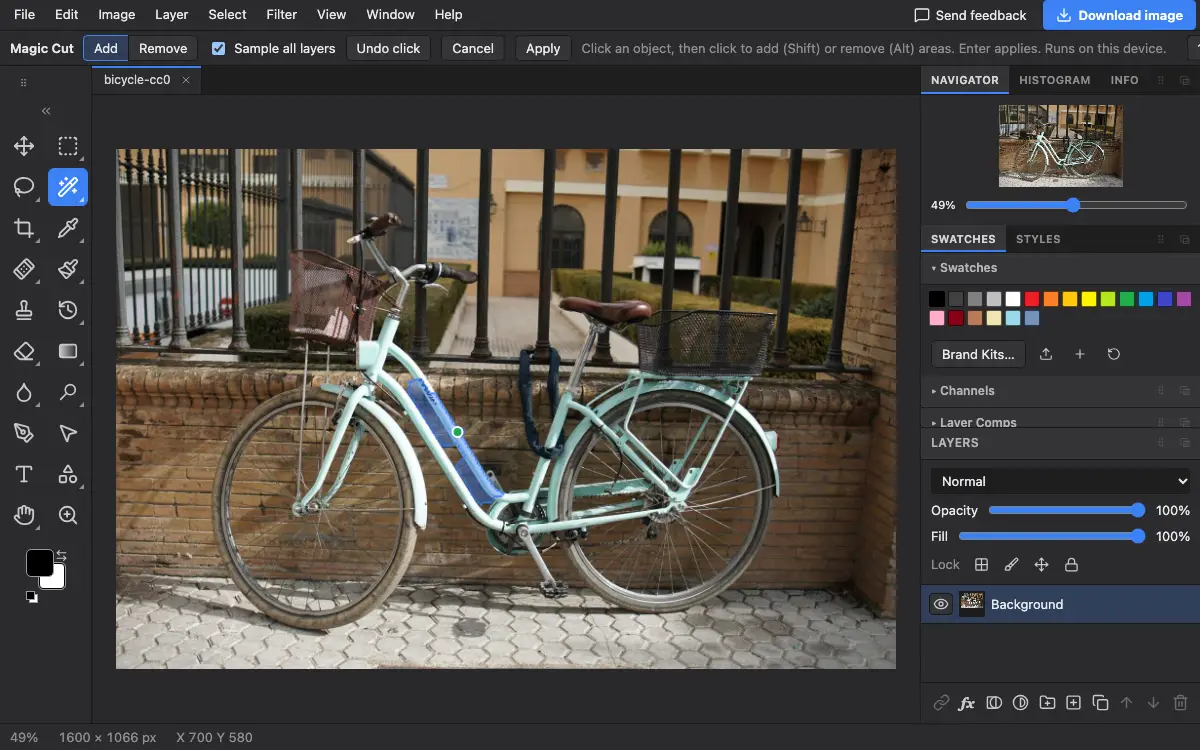
Options bar settings
Tips and common mistakes
- Your first click should be on the middle of the object, not its edge.
- After applying, add a layer mask from the selection to cut the object out without deleting anything.
Related
Photostar is a free online Photoshop alternative that runs in your browser. There is no account to make, and your files stay on your device.
Checked in the current editor.