

How to use the Magic Eraser tool
The Magic Eraser erases a whole area of similar colour with one click, such as a plain white background behind a product.
Where to find it
It is in the toolbar, in one slot with Eraser. Right-click the slot, or press and hold it, to choose between them. Press Shift+E until it is selected (E on its own picks Eraser).
How to use it
- Choose the tool. Press Shift+E until it is selected, or right-click the eraser slot and pick Magic Eraser.
- Set Tolerance. Start around 32 for a plain background.
- Click the colour to remove. Click on the background. Matching pixels become transparent.
- Click again for leftovers. Click any patches it missed, or undo and raise Tolerance.
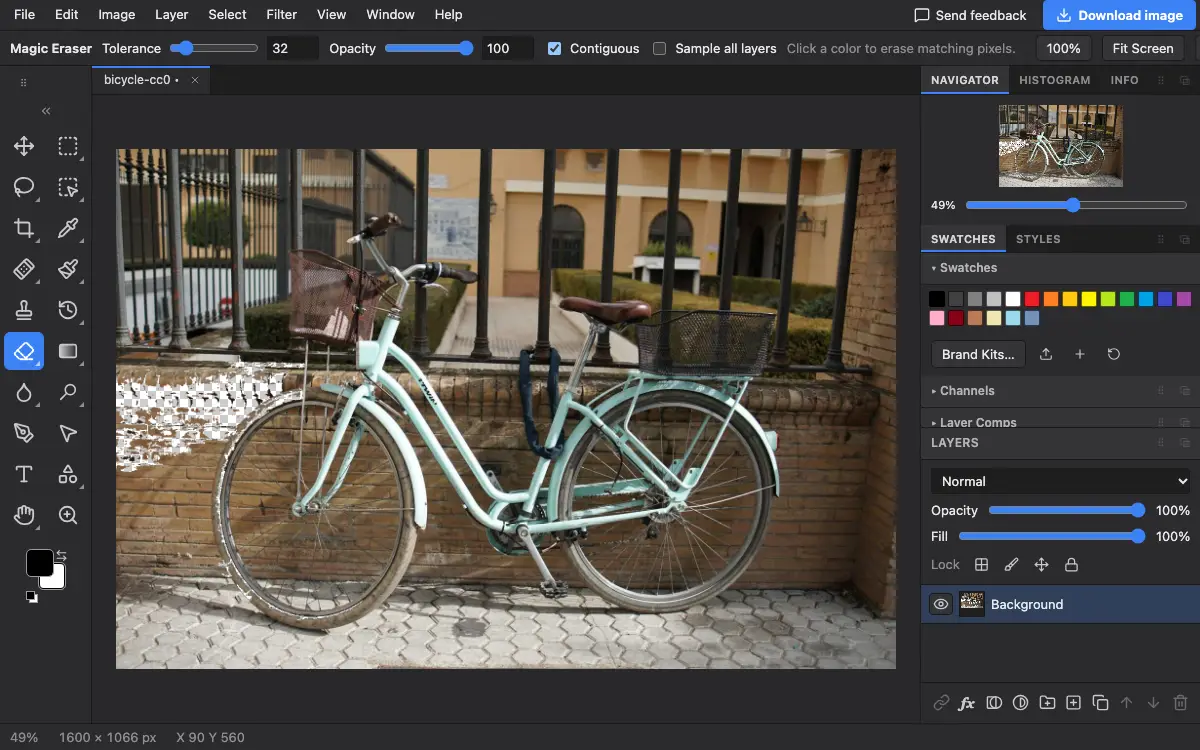
Options bar settings
Tips and common mistakes
- For a background that is not one flat colour, Layer → Remove Background or Magic Cut does a cleaner job.
- Export as PNG to keep the transparent areas.
Related
Photostar is a free online Photoshop alternative that runs in your browser. There is no account to make, and your files stay on your device.
Checked in the current editor.