

How to use the Move tool
The Move tool drags a layer, or the pixels inside a selection, to a new place. Its options bar also lines layers up with each other or with the canvas.
Where to find it
It has its own button in the toolbar. Press V to pick it.
How to use it
- Pick the layer. Click the layer in the Layers panel, or turn on Auto-select and click the thing you want on the canvas.
- Drag it. Drag on the canvas. The layer follows the pointer and snaps to guides and the canvas edges when they are on.
- Nudge it. Use the arrow keys to move it 1 pixel at a time, or hold Shift for 10 pixels.
- Copy it if you need two. Hold Alt (Option on a Mac) as you drag to leave the original where it was and move a copy.
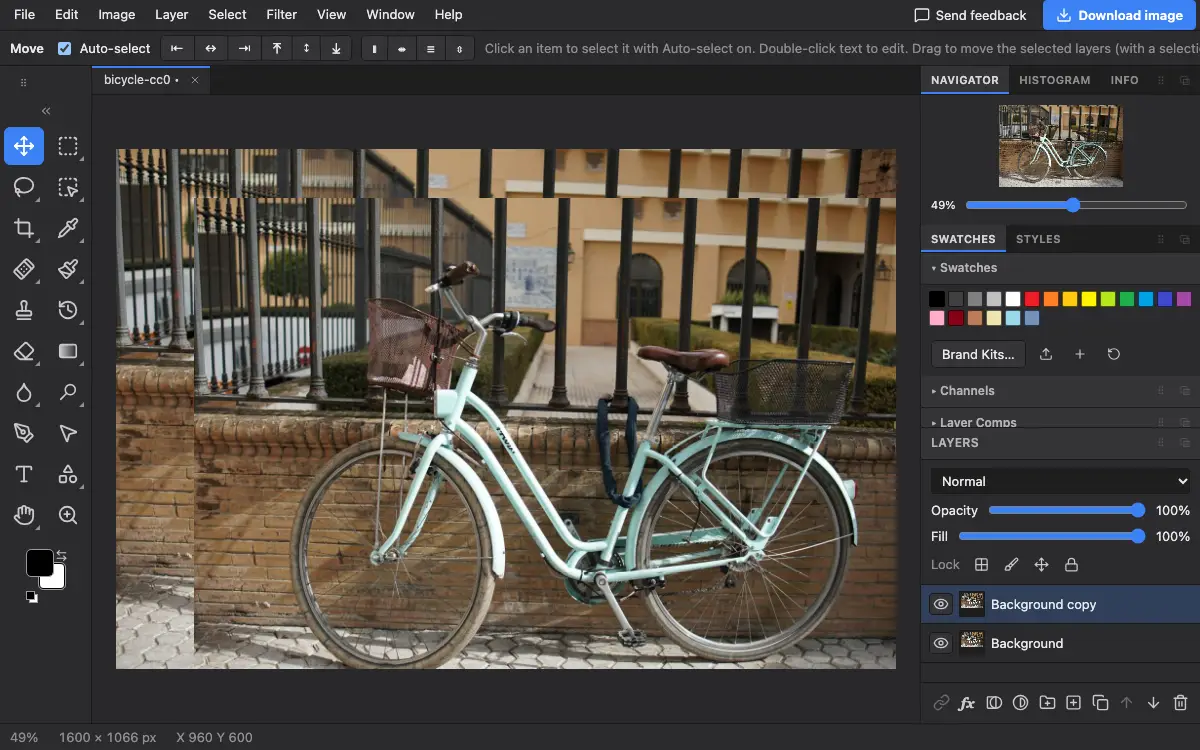
Options bar settings
Tips and common mistakes
- With a selection active, the Move tool drags only the selected pixels. Press Ctrl+D (Cmd+D on a Mac) to deselect first if you want the whole layer.
- Double-click a text layer with the Move tool to start editing its words.
- Ctrl-click or Shift-click layers in the Layers panel to move several at once.
Related
Photostar is a free online Photoshop alternative that runs in your browser. There is no account to make, and your files stay on your device.
Checked in the current editor.