

How to use the Elliptical Marquee tool
The Elliptical Marquee tool selects an oval or a circle, for a round crop, a vignette or a round frame around something.
Where to find it
It is in the toolbar, in one slot with Rectangular Marquee. Right-click the slot, or press and hold it, to choose between them. Press Shift+M until it is selected (M on its own picks Rectangular Marquee).
How to use it
- Choose the tool. Press Shift+M until the dashed circle is selected, or right-click the marquee slot in the toolbar and pick it.
- Drag an oval. Drag across the area. The oval fits inside the box you drag.
- Make a circle. Press Shift after you start dragging to keep it round.
- Use the selection. Fill it, copy it to a new layer, or invert it with Select → Inverse to work on everything outside it.
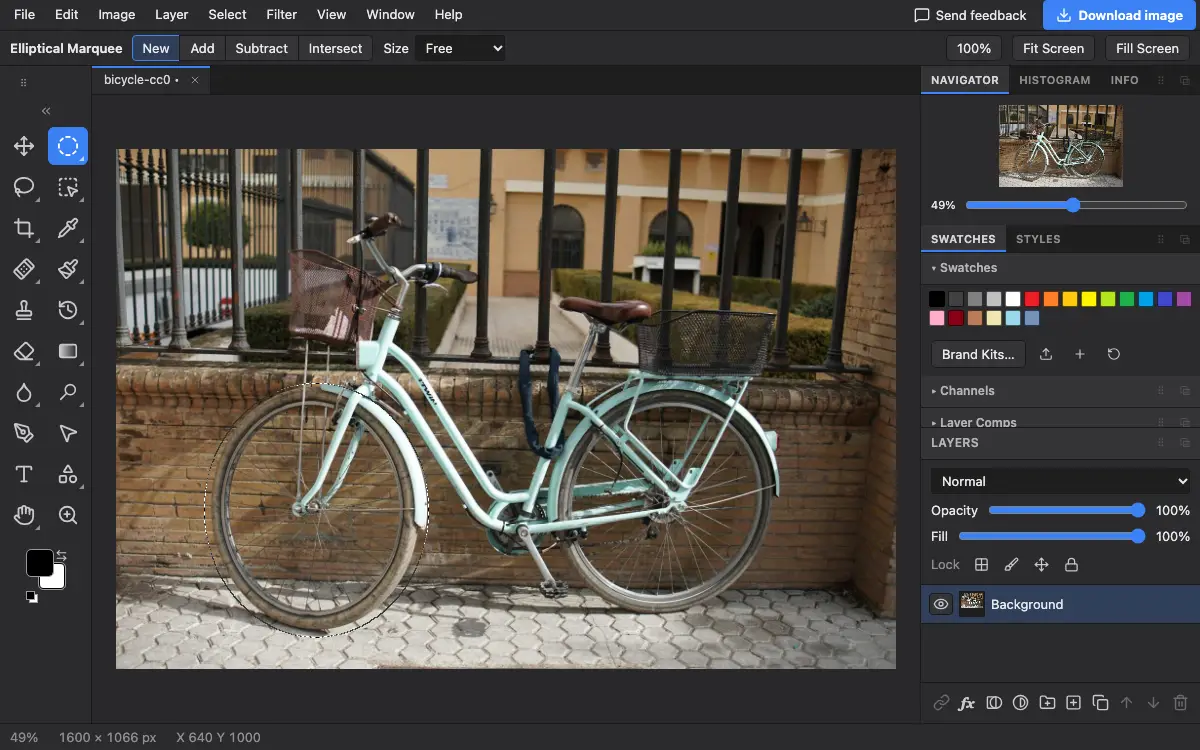
Options bar settings
Tips and common mistakes
- For a soft round vignette, select the oval, choose Select → Inverse, then fill or darken the outside.
- For a soft edge, choose Select → Modify → Feather… before you fill or adjust.
Related
Photostar is a free online Photoshop alternative that runs in your browser. There is no account to make, and your files stay on your device.
Checked in the current editor.