

How to use the Type tool to add text
The Type tool adds text to a picture as its own layer, so you can change the words, font and colour at any time.
Where to find it
It has its own button in the toolbar. Press T to pick it.
How to use it
- Choose the tool. Press T, or click the T in the toolbar.
- Click or drag. Click for a single line of text, or drag a box for a paragraph that wraps. Click on a path to type along it.
- Type. Type your words. The text uses the foreground colour and the font and size in the options bar.
- Finish. Press Ctrl+Enter (Cmd+Enter on a Mac) or click away. Esc also keeps new text.
- Edit later. Click the text again with the Type tool, or double-click it with the Move tool.
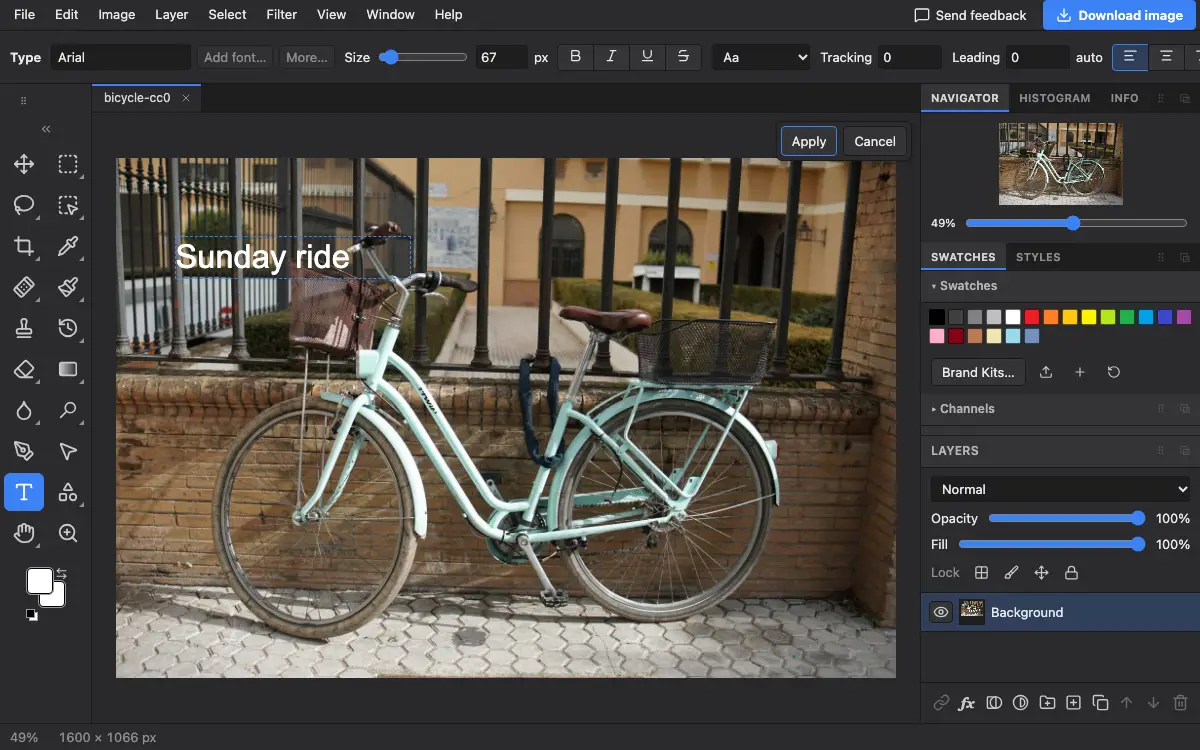
Options bar settings
Tips and common mistakes
- Select some letters while editing to change the font, size or colour of only those.
- Text is saved as editable type in PSD files, so it stays editable if you open it again.
Questions
Can I use my own font?
Yes. Click Add font… in the options bar and choose a font file. It is kept on your device and listed under your fonts.
Related
Photostar is a free online Photoshop alternative that runs in your browser. There is no account to make, and your files stay on your device.
Checked in the current editor.