

Merge two photos side by side
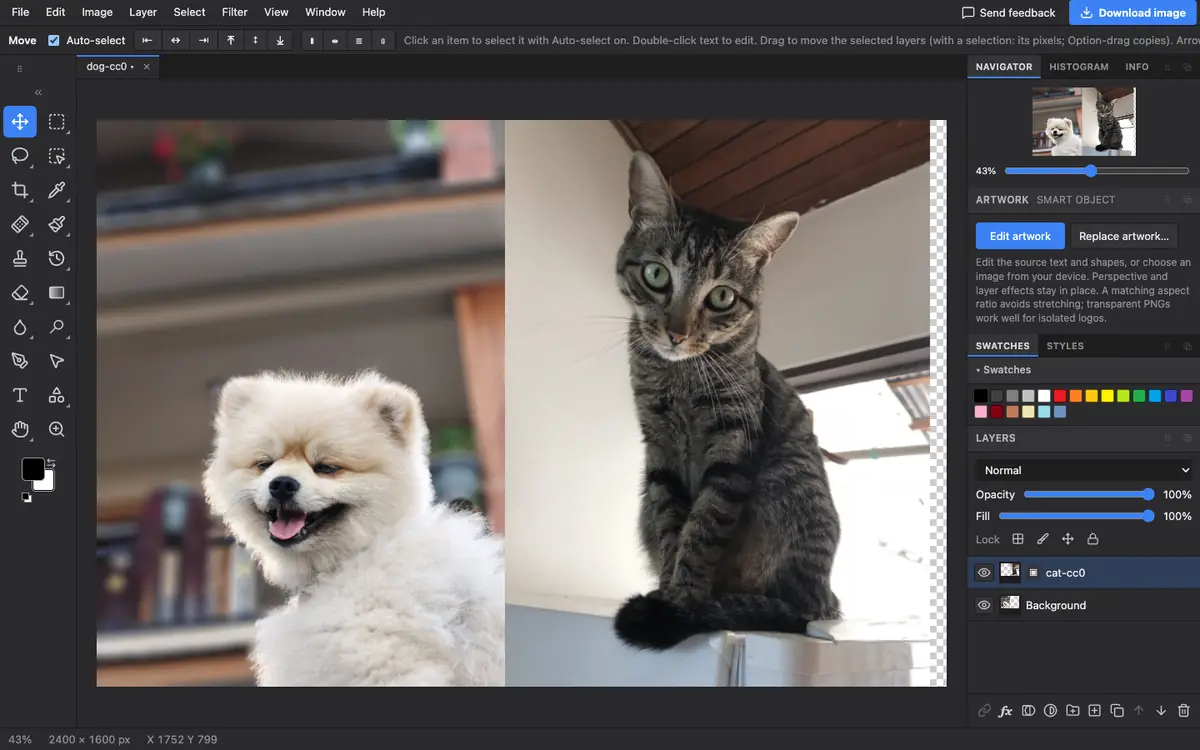
Before and after shots, comparisons and couple photos often need two pictures in one image. In Photostar you make room on the canvas, place the second photo and move it into the space.
Photostar is a free online Photoshop alternative that runs in your browser. There is no account to make, and your files stay on your device.
Choose the first photoOpens the free editor. Nothing is uploaded.How to do it
- Open the first photo. Use the button above. Note its width, shown at the bottom of the window.
- Make room. Choose Image → Canvas Size. Double the width, click the left-middle square under Anchor so the photo stays on the left, and click OK.
- Place the second photo. Choose File → Place Embedded and pick the second photo. It arrives as its own layer.
- Move it into place. Press Enter to place it, then drag it into the empty half with the Move tool. Use Edit → Free Transform if it needs resizing.
- Save. Click Download image, or use File → Export As.
Stacked, gaps and panoramas
For one photo above the other, double the height instead and pick the top-middle anchor. For a white gap between them, add a little extra width and set Canvas extension colour to White. To join overlapping shots of a view into one wide picture, File → Automate → Photomerge lines them up for you.
Questions
How do I put two pictures side by side?
Open the first photo, double the width with Image → Canvas Size, then add the second with File → Place Embedded and drag it into the empty half.
What if the photos are different sizes?
After placing the second photo, use Edit → Free Transform and drag a corner until it matches the first one’s height.
Can I add a border between them?
Yes. Make the canvas a little wider than double and choose White as the canvas extension colour.
Are both photos kept separately?
Yes, as separate layers until you save a flat JPEG or PNG. Save a project file to keep editing later.
Related
Reviewed , with a real photo in the current editor.