

How to use the Remove tool
The Remove tool takes things out of a photo. Paint over something you do not want, and when you let go the area is filled from what is around it.
Where to find it
It is in the toolbar, in one slot with Spot Healing Brush, Healing Brush, Patch, Content-Aware Move and Red Eye. Right-click the slot, or press and hold it, to choose between them. Press Shift+J until it is selected (J on its own picks Spot Healing Brush).
How to use it
- Choose the tool. Press Shift+J until it is selected, or right-click the healing slot in the toolbar and pick Remove.
- Size the brush. Set Size so the brush is a little wider than the thing you are removing.
- Paint it out. Paint over the whole object, a little past its edges, including its shadow.
- Let go. The fill is worked out on your device. Paint again over anything left behind.
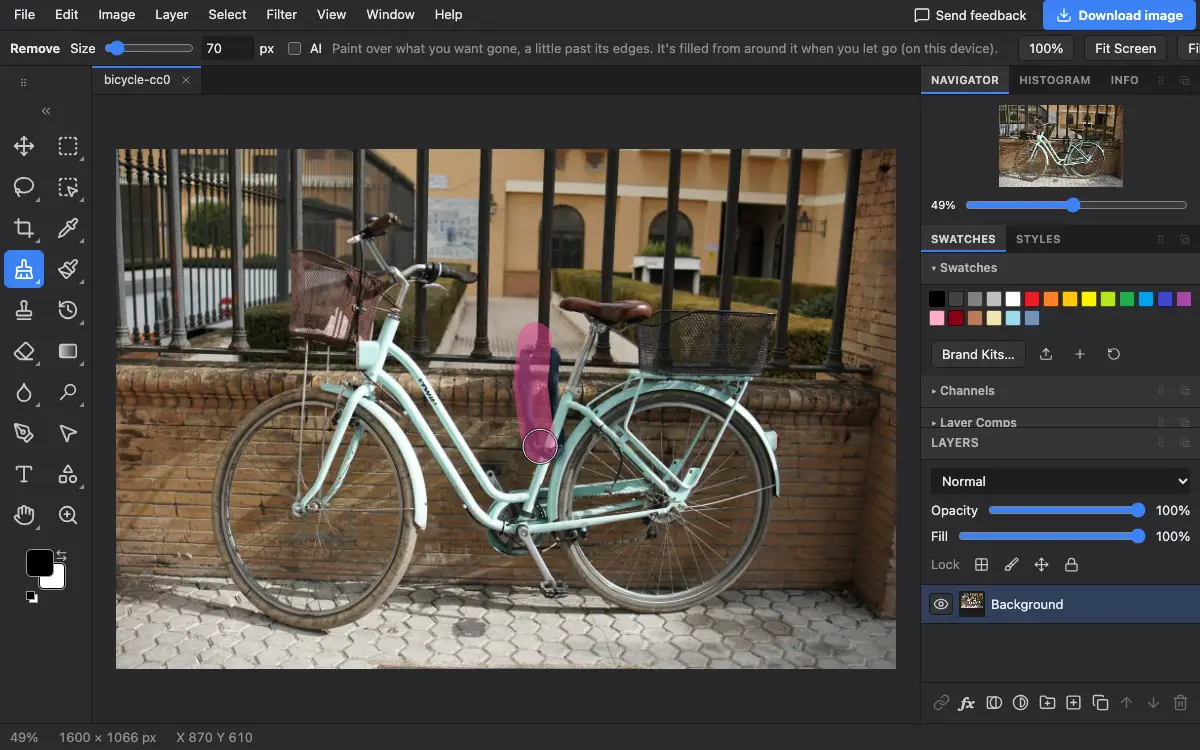
Options bar settings
Tips and common mistakes
- Cover the object completely. A thin outline left behind is copied into the fill.
- Remove large things in two or three passes rather than one giant stroke.
Questions
Is my photo uploaded when I use Remove?
No. Both the standard fill and the AI option run in your browser on your device. After a removal a Better result button may appear: it uses a cloud AI, and opens a dialog first so nothing is sent unless you go ahead.
Related
Photostar is a free online Photoshop alternative that runs in your browser. There is no account to make, and your files stay on your device.
Checked in the current editor.