

How to use the Content-Aware Move tool
The Content-Aware Move tool moves something to a new spot in the photo and fills the place it left from the surroundings.
Where to find it
It is in the toolbar, in one slot with Spot Healing Brush, Remove, Healing Brush, Patch and Red Eye. Right-click the slot, or press and hold it, to choose between them. Press Shift+J until it is selected (J on its own picks Spot Healing Brush).
How to use it
- Choose the tool. Press Shift+J until it is selected, or right-click the healing slot and pick Content-Aware Move.
- Draw round the object. Drag a loose loop around it, leaving a little background inside.
- Drag it. Drag from inside the loop to the new place.
- Let go. The object lands there, blended at its edges, and the old spot is filled in.
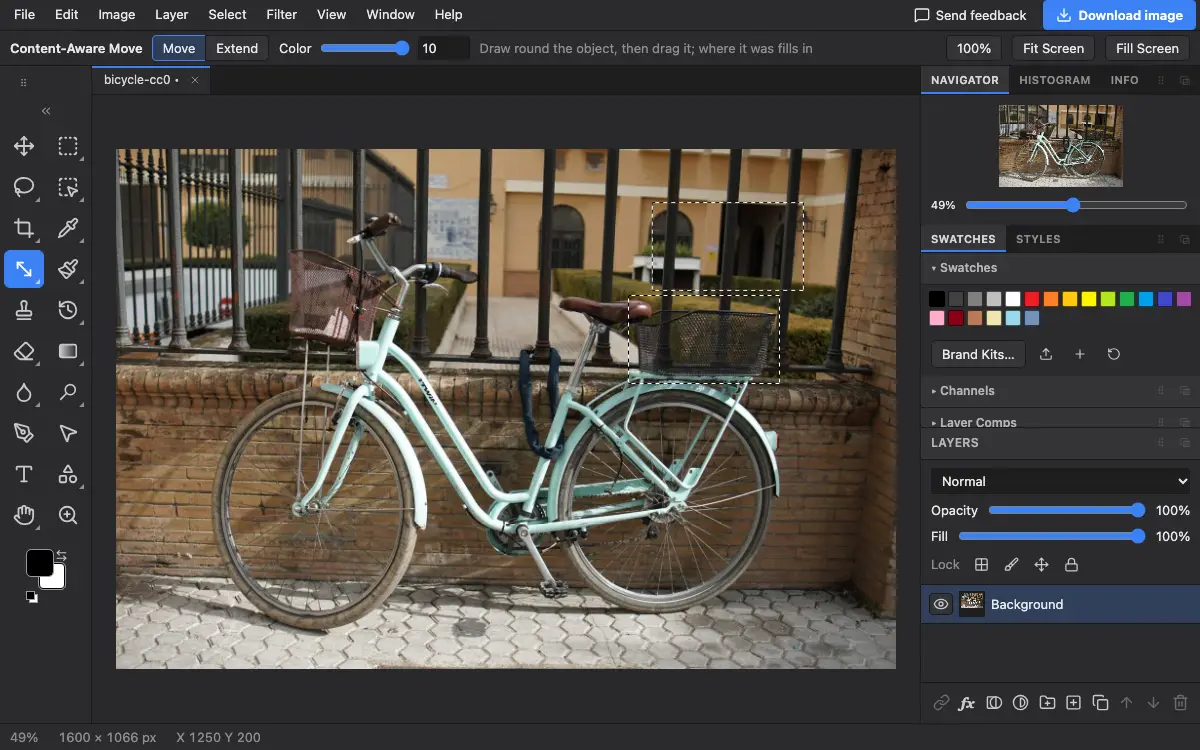
Options bar settings
Tips and common mistakes
- It works best on plain backgrounds such as sand, grass, sky or walls. On busy scenes, check the filled spot and touch it up with the Remove tool.
- Keep a little background inside the loop so the edges have something to blend.
Related
Photostar is a free online Photoshop alternative that runs in your browser. There is no account to make, and your files stay on your device.
Checked in the current editor.