

How to use the Pattern Stamp tool
The Pattern Stamp tool paints with a repeating pattern instead of a colour. Each stroke reveals the pattern where the brush goes.
Where to find it
It is in the toolbar, in one slot with Clone Stamp. Right-click the slot, or press and hold it, to choose between them. Press Shift+S until it is selected (S on its own picks Clone Stamp).
How to use it
- Choose the tool. Press Shift+S until it is selected, or right-click the stamp slot in the toolbar and pick Pattern Stamp.
- Pick a pattern. Click Pattern in the options bar and choose one. To use part of your own picture, select it and choose Edit → Define Pattern… first.
- Set the brush. Choose Size, Hardness and Opacity.
- Paint. Drag over the area. Work on a new empty layer if you may want to change it later.
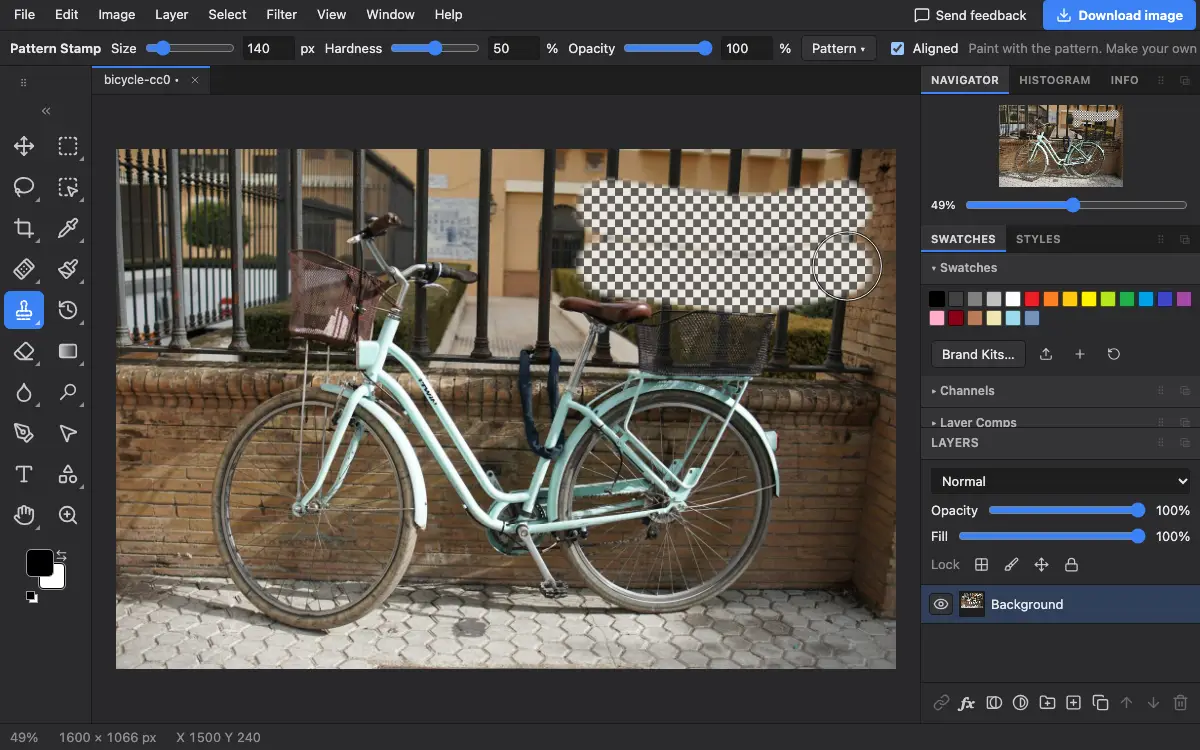
Options bar settings
Tips and common mistakes
- A low Opacity lets the photo show through, for a texture rather than a solid pattern.
- For a whole area at once, use the Paint Bucket with Pattern instead.
Related
Photostar is a free online Photoshop alternative that runs in your browser. There is no account to make, and your files stay on your device.
Checked in the current editor.