

How to use the Paint Bucket tool
The Paint Bucket fills an area of similar colour with the foreground colour or a pattern, in one click.
Where to find it
It is in the toolbar, in one slot with Gradient. Right-click the slot, or press and hold it, to choose between them. Press Shift+G until it is selected (G on its own picks Gradient).
How to use it
- Choose the tool. Press Shift+G until it is selected, or right-click the gradient slot and pick Paint Bucket.
- Choose what to fill with. Pick Colour for the foreground colour, or Pattern and choose one from the list.
- Click the area. Click inside the region to fill. Pixels of a similar colour around the click are filled.
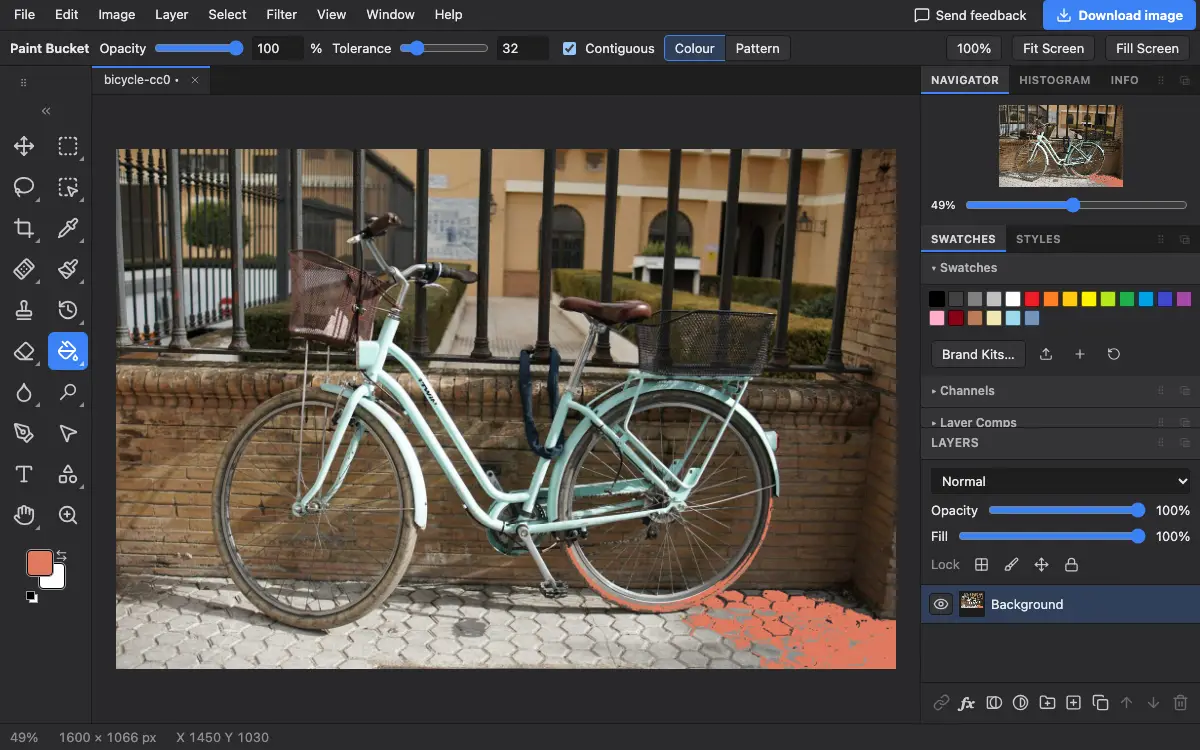
Options bar settings
Tips and common mistakes
- Gaps left at anti-aliased edges are normal. Raise Tolerance a little, or fill a selection with Edit → Fill… instead.
- To fill a whole selection regardless of its colours, use Alt+Backspace (Option+Delete on a Mac).
Related
Photostar is a free online Photoshop alternative that runs in your browser. There is no account to make, and your files stay on your device.
Checked in the current editor.