

How to use the Eraser tool
The Eraser tool removes pixels from the current layer, leaving it transparent so whatever is below shows through.
Where to find it
It is in the toolbar, in one slot with Magic Eraser. Right-click the slot, or press and hold it, to choose between them. Press E to pick it, and Shift+E to step through the other tools on that key.
How to use it
- Choose the tool. Press E, or click the eraser in the toolbar.
- Set the eraser. Pick a tip, then set Size and Hardness. A soft edge gives a gentle fade.
- Erase. Drag over what you want gone. Shift-click to erase in a straight line from the end of the last stroke.
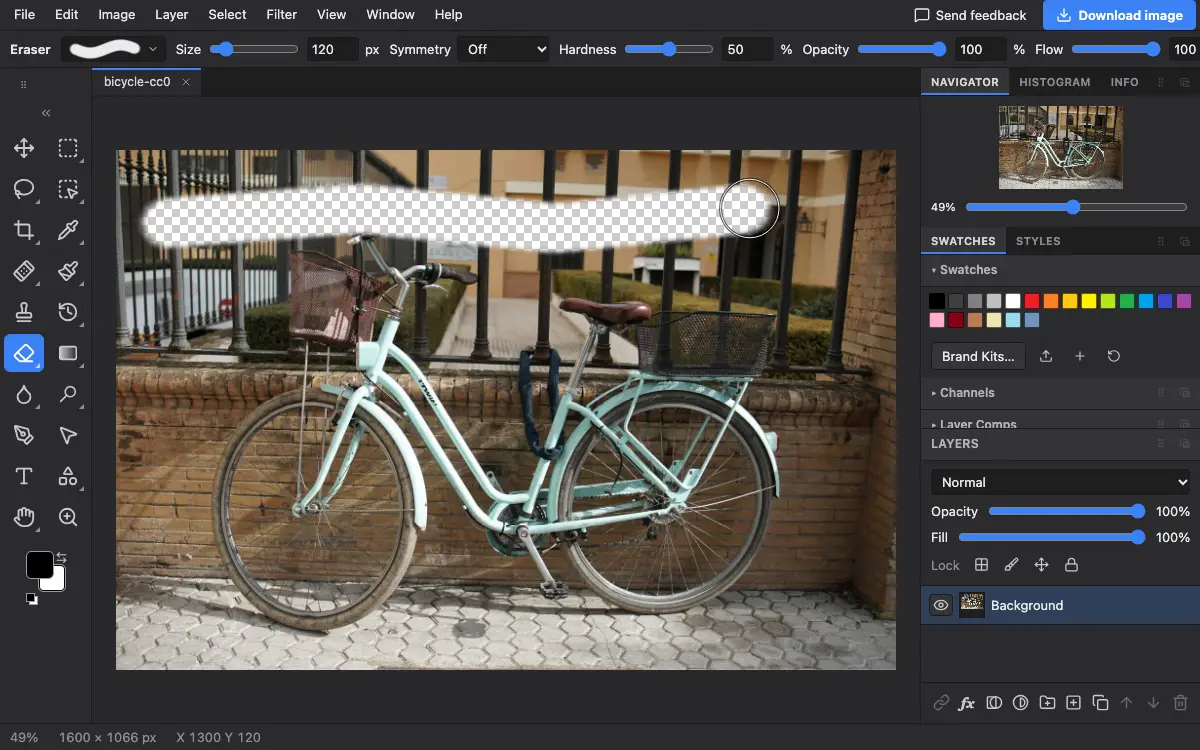
Options bar settings
Tips and common mistakes
- Erased pixels are gone from the layer; only Undo or the History Brush brings them back. A layer mask hides the same pixels and lets you show them again at any time.
- With a layer mask selected, the Eraser paints the background colour onto the mask instead.
- To keep transparency when you save, export as PNG or WebP; JPEG has no transparency.
Related
Photostar is a free online Photoshop alternative that runs in your browser. There is no account to make, and your files stay on your device.
Checked in the current editor.