

How to use the Healing Brush tool
The Healing Brush copies texture from a place you choose and blends its colour and brightness into the spot you paint, so the repair does not show.
Where to find it
It is in the toolbar, in one slot with Spot Healing Brush, Remove, Patch, Content-Aware Move and Red Eye. Right-click the slot, or press and hold it, to choose between them. Press Shift+J until it is selected (J on its own picks Spot Healing Brush).
How to use it
- Choose the tool. Press Shift+J until it is selected, or right-click the healing slot and pick Healing Brush.
- Set a source. Alt-click (Option-click on a Mac) a clean area with the same texture as the damaged one.
- Paint over the flaw. Drag over the mark. A cross shows where texture is being copied from.
- Pick a new source when needed. Alt-click again whenever the texture around you changes.
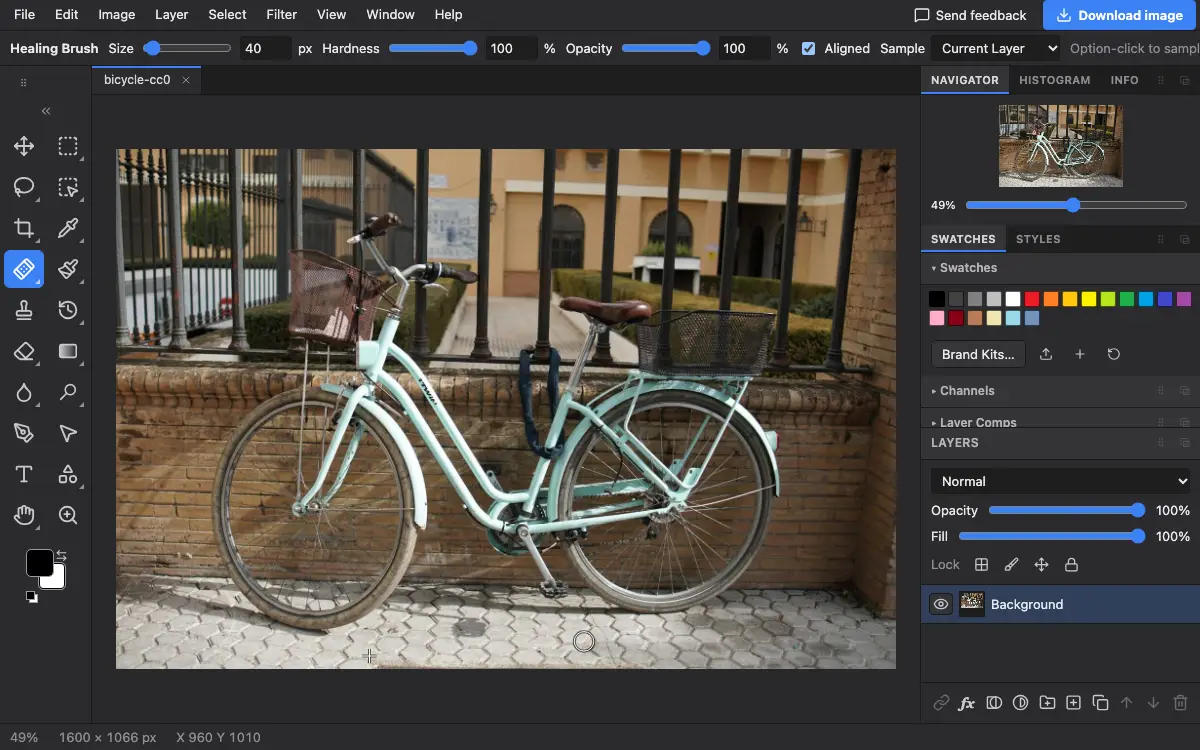
Options bar settings
Tips and common mistakes
- Choose All Layers and paint on an empty layer to keep every repair separate from the photo.
- Near a hard edge, such as a wall meeting the sky, the colour blending can smudge. Use the Clone Stamp there instead.
Related
Photostar is a free online Photoshop alternative that runs in your browser. There is no account to make, and your files stay on your device.
Checked in the current editor.