

How to use the Color Sampler tool
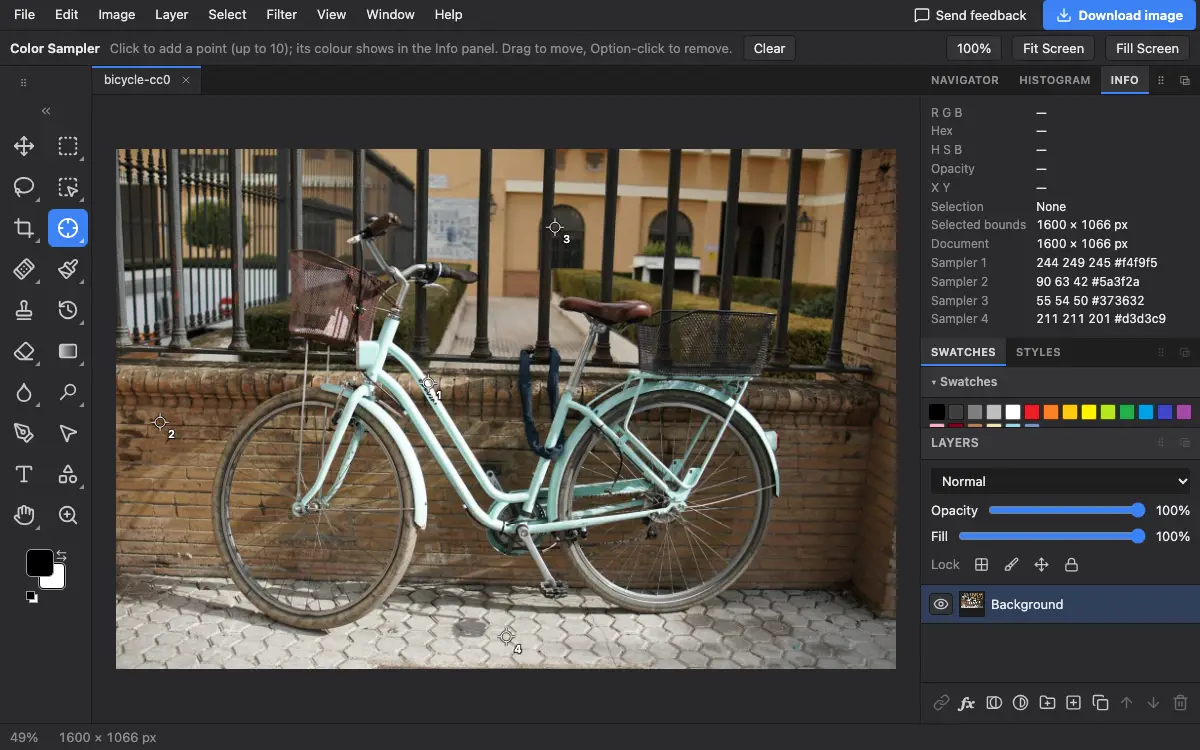
The Color Sampler tool pins points on the picture and shows their colour values in the Info panel, so you can watch them change while you adjust colour.
Where to find it
It is in the toolbar, in one slot with Eyedropper and Ruler. Right-click the slot, or press and hold it, to choose between them. It has no shortcut key.
How to use it
- Choose the tool. Right-click the eyedropper slot in the toolbar and pick Color Sampler.
- Click to add points. Click on the spots you want to watch, up to 10.
- Read the values. Open the Info panel. Each point is listed with its colour.
- Move or remove points. Drag a point to move it, or Alt-click (Option-click on a Mac) it to remove it.
Options bar settings
Tips and common mistakes
- Put one point on something that should be neutral grey or white, then use Curves or Levels until its red, green and blue values match.
- Sample points are not part of the picture; they never show in an export.
Related
Photostar is a free online Photoshop alternative that runs in your browser. There is no account to make, and your files stay on your device.
Checked in the current editor.