

How to use the Eyedropper tool
The Eyedropper tool picks a colour from the picture and makes it your foreground colour, ready for the Brush, the Paint Bucket or text.
Where to find it
It is in the toolbar, in one slot with Color Sampler and Ruler. Right-click the slot, or press and hold it, to choose between them. Press I to pick it.
How to use it
- Choose the tool. Press I, or click the pipette in the toolbar.
- Click the colour. Click on the colour you want. The foreground swatch at the bottom of the toolbar changes.
- Drag to hunt. Hold the button and drag; the swatch updates as you move until you let go.
- Set the background colour. Alt-click (Option-click on a Mac) to pick the background colour instead.
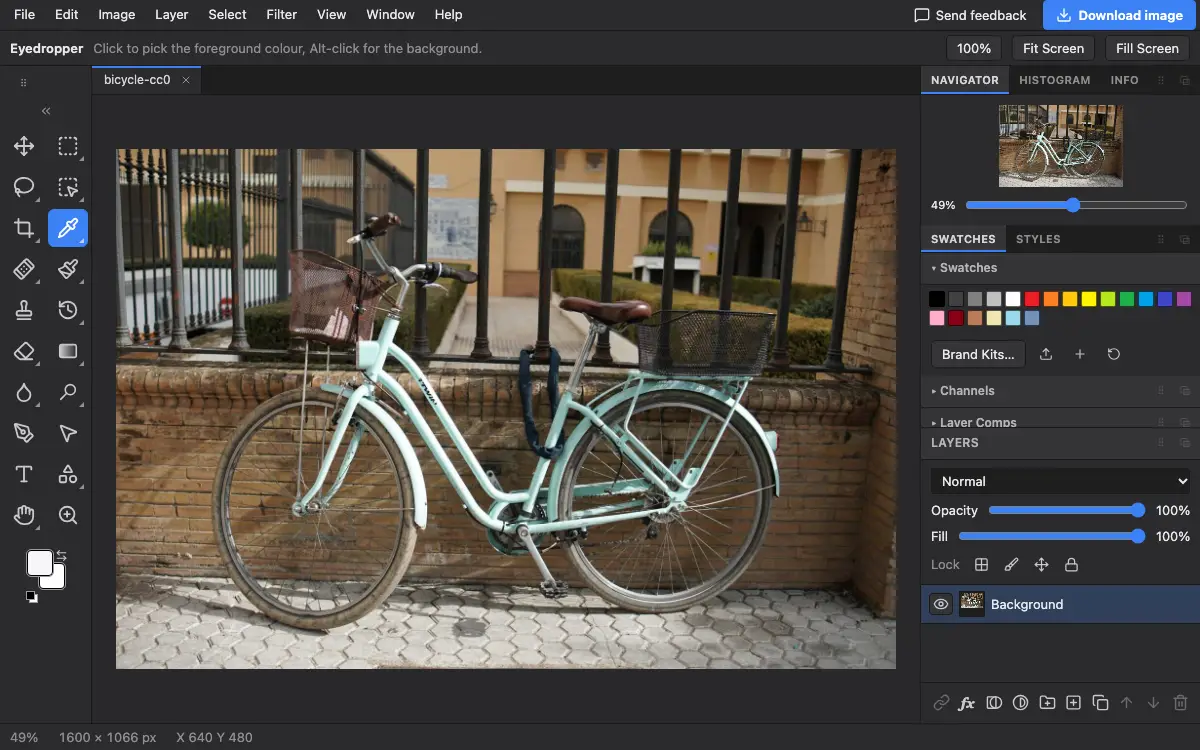
Options bar settings
This tool has no settings of its own: the options bar only shows a short reminder of what the keys do.
Tips and common mistakes
- Transparent pixels are ignored, so clicking an empty area changes nothing.
- Press X to swap the foreground and background colours, or D for black and white.
- For a colour you need to keep checking, the Color Sampler tool pins it in the Info panel.
Related
Photostar is a free online Photoshop alternative that runs in your browser. There is no account to make, and your files stay on your device.
Checked in the current editor.