

How to use the Background Eraser tool
The Background Eraser tool erases the colour under the centre of the brush and colours like it, to transparency, and leaves other colours alone. Brush along the edge of a subject to cut it from its background.
Where to find it
It is in the toolbar, in one slot with Eraser and Magic Eraser. Right-click the slot, or press and hold it, to choose between them. Press Shift+E until it is selected (E on its own picks Eraser).
How to use it
- Choose the tool. Press Shift+E until it is selected, or right-click the eraser slot in the toolbar and pick Background Eraser.
- Set the brush. Choose a Size that covers the edge and some background, and a Tolerance to start with.
- Brush along the edge. Keep the crosshair on the background as you paint. The background colour is erased; the subject stays as long as its colour is different.
- Clean up. Erase the rest of the background with the Eraser, which is quicker away from the edges.
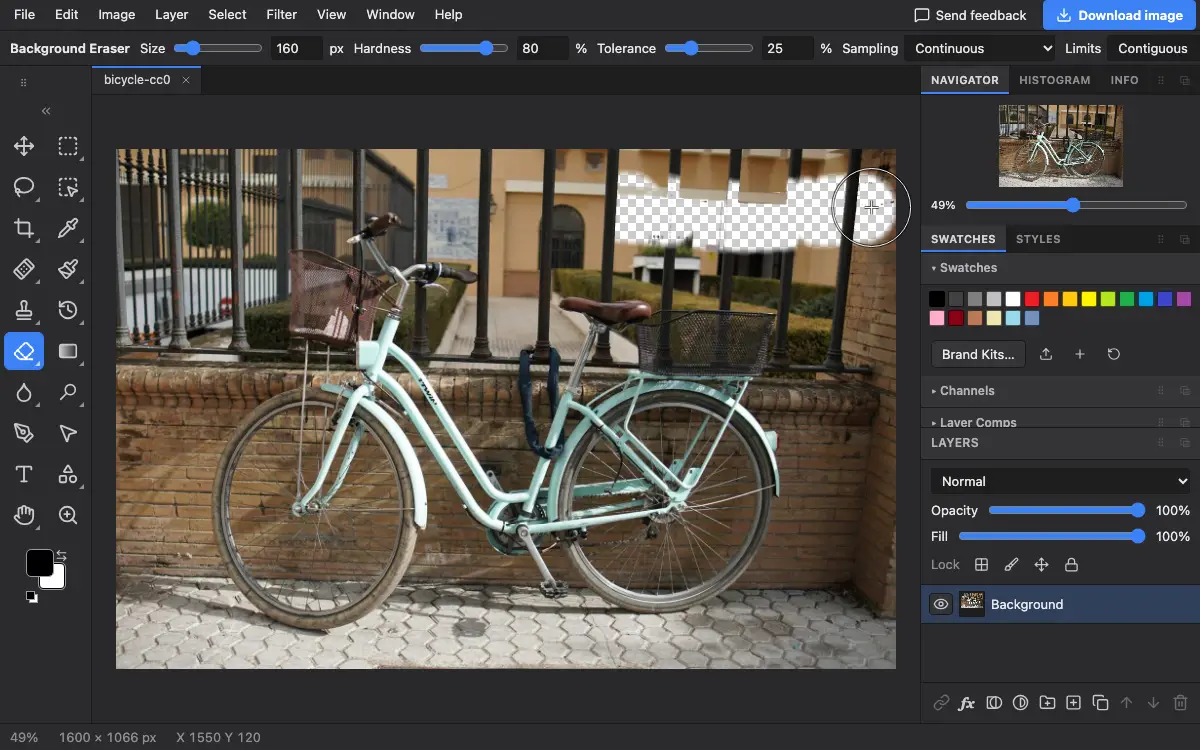
Options bar settings
Tips and common mistakes
- Erased pixels become transparent. Save as PNG or PSD to keep the transparency; JPEG has none.
- For a whole subject in one go, Magic Cut or Remove Background is usually faster; use this tool for hair and fine edges they miss.
Related
Photostar is a free online Photoshop alternative that runs in your browser. There is no account to make, and your files stay on your device.
Checked in the current editor.