

How to use the Shape tool
The Shape tool draws vector shapes that stay sharp at any size: rectangles, ellipses, polygons, lines and custom shapes such as arrows and hearts.
Where to find it
It is in the toolbar, in one slot with Parametric Shape. Right-click the slot, or press and hold it, to choose between them. Press U to pick it, and Shift+U to step through the other tools on that key.
How to use it
- Choose the tool. Press U, or click the shapes icon in the toolbar.
- Pick a shape. Choose Rectangle, Ellipse, Polygon, Line or Custom. Shift+U steps through the first four.
- Set fill and stroke. Tick Fill to fill with the foreground colour, and Stroke for an outline with its own colour and width.
- Drag. Drag on the canvas. Shift keeps it square or round (or a line at 45 degrees); Alt draws from the centre.
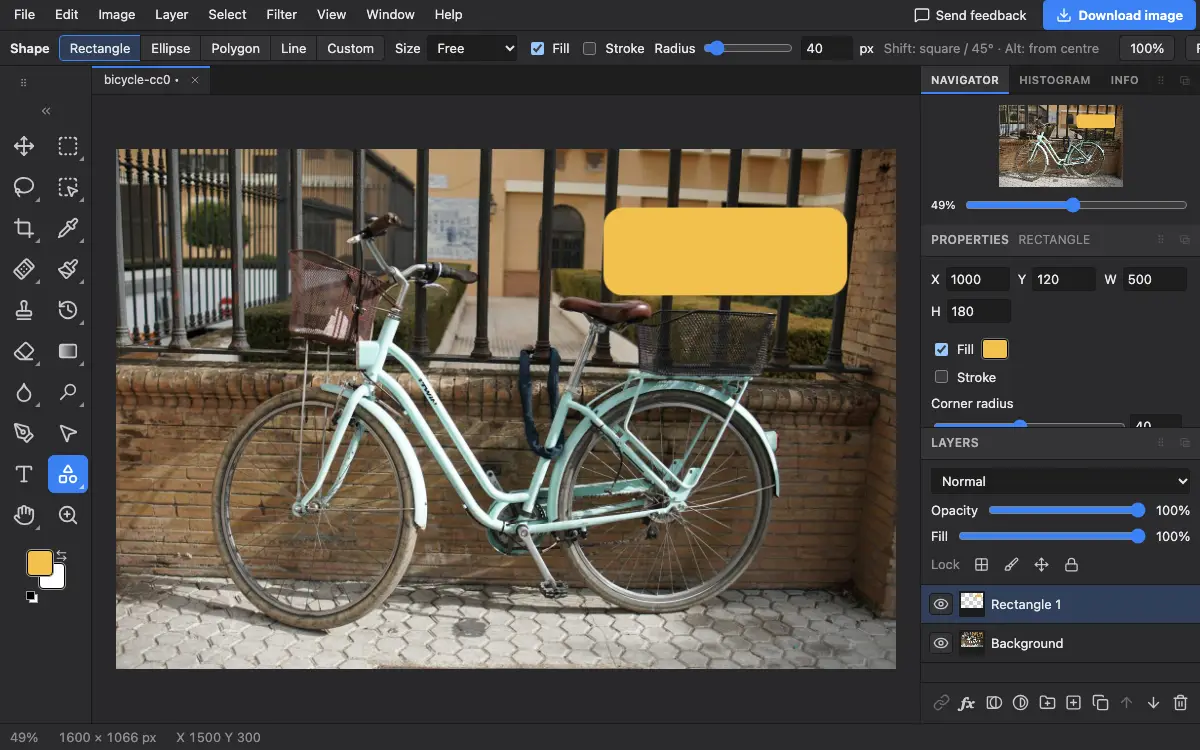
Options bar settings
Tips and common mistakes
- Each shape is its own layer. Change its colours later in the Properties panel.
- For corners that can each have their own radius, or a star, use the Parametric Shape tool.
Related
Photostar is a free online Photoshop alternative that runs in your browser. There is no account to make, and your files stay on your device.
Checked in the current editor.