

How to use the Pen tool
The Pen tool draws paths made of points and smooth curves. A path can become a precise selection, a filled shape, a stroke or a vector mask.
Where to find it
It has its own button in the toolbar. Press P to pick it.
How to use it
- Choose the tool. Press P, or click the pen nib in the toolbar.
- Pick what to make. Choose Path, Shape or Vector mask in the options bar.
- Click and drag points. Click for a sharp corner; drag to pull out handles for a curve.
- Close or finish. Click the first point to close the path, or press Enter to finish an open one.
- Use the path. In Path mode, click Selection (or press Ctrl+Enter, Cmd+Enter on a Mac), Fill or Stroke.
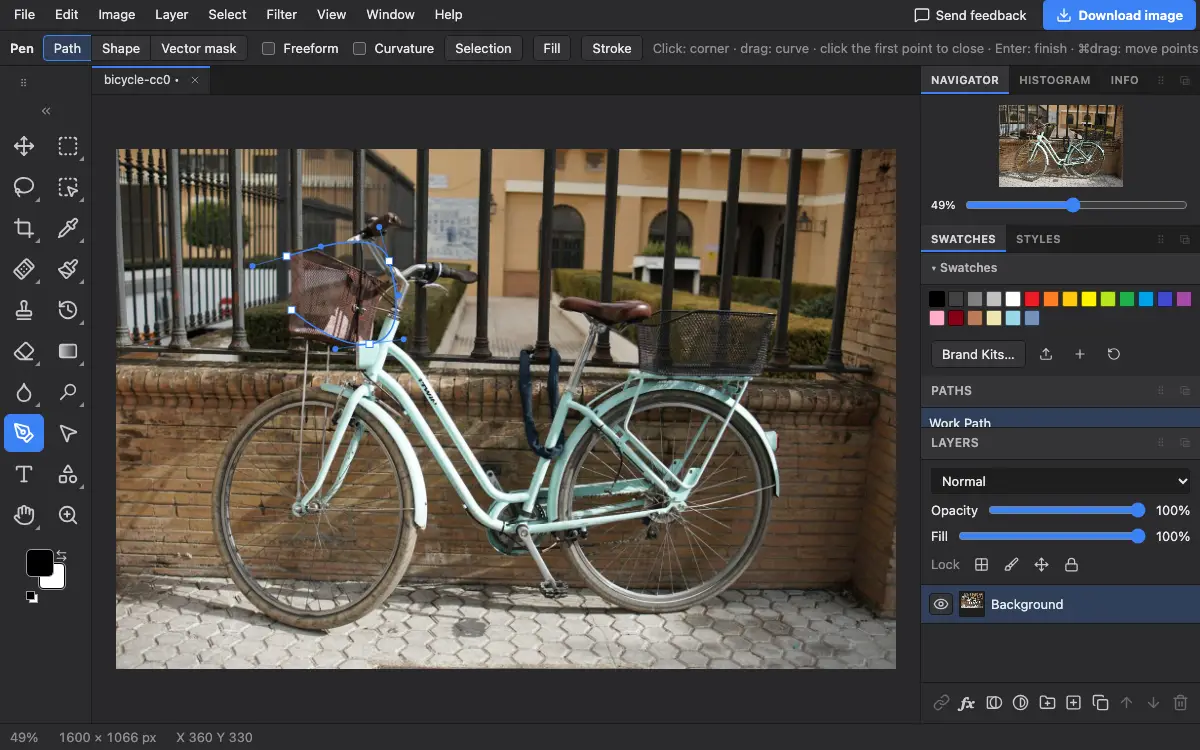
Options bar settings
Tips and common mistakes
- Hold Ctrl (Cmd on a Mac) and drag to move a point while drawing.
- Fewer points make smoother curves. Place them at the turns, not along the straight parts.
Related
Photostar is a free online Photoshop alternative that runs in your browser. There is no account to make, and your files stay on your device.
Checked in the current editor.