

How to use the Note tool
The Note tool pins a short written note to a spot on the picture. Notes are not part of the image: they are for you, or for whoever opens the file next.
Where to find it
It is in the toolbar, in one slot with Eyedropper, Color Sampler and Ruler. Right-click the slot, or press and hold it, to choose between them. Press Shift+I until it is selected (I on its own picks Eyedropper).
How to use it
- Choose the tool. Right-click the eyedropper slot in the toolbar and pick Note, or press Shift+I until it is selected.
- Click where the note belongs. A note marker appears there and a box opens for the text.
- Write and confirm. Type the note and click OK. Click the marker again later to read or change it.
- See them all. Window → Notes lists every note in the document, where you can edit or delete them.
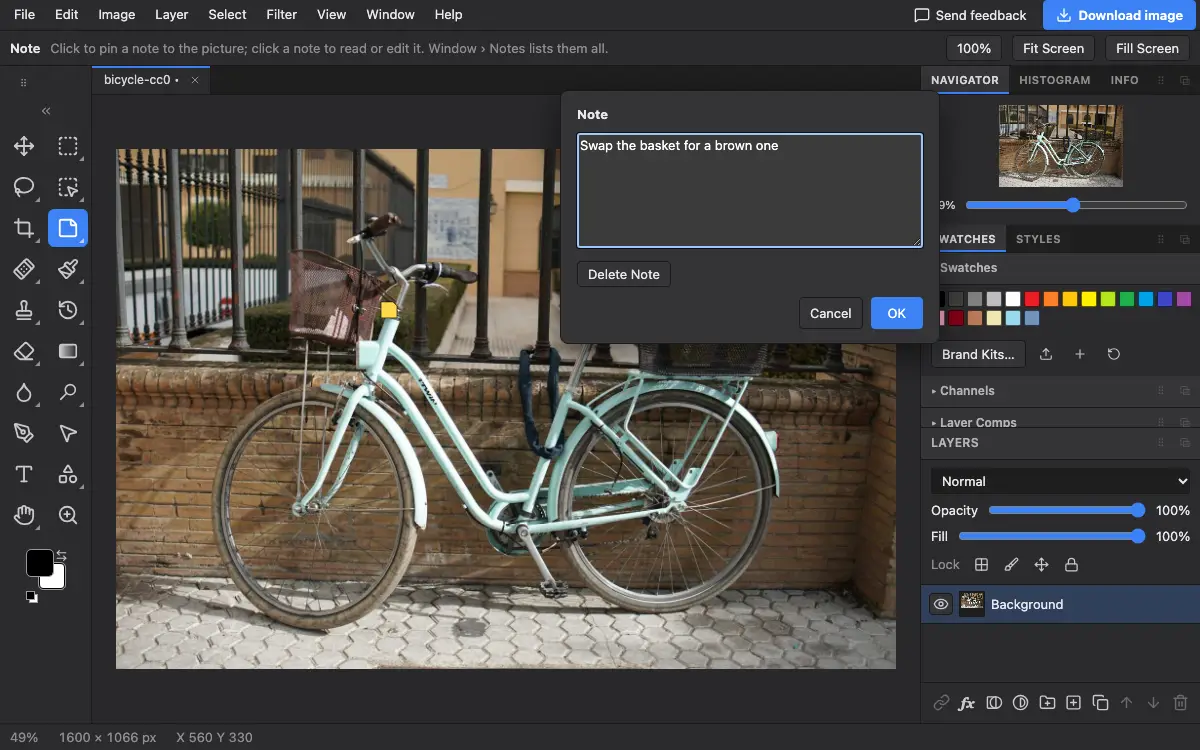
Options bar settings
This tool has no settings of its own: the options bar only shows a short reminder of what the keys do.
Tips and common mistakes
- Notes are saved in PSD files, so a note you add here shows up when the file is opened in other editors, and the other way round.
- Notes never appear in an exported JPEG or PNG.
Related
Photostar is a free online Photoshop alternative that runs in your browser. There is no account to make, and your files stay on your device.
Checked in the current editor.