

How to use the History Brush tool
The History Brush paints part of the picture back to how it looked earlier, for example before a filter or colour change, while the rest keeps the edit.
Where to find it
It is in the toolbar, in one slot with Art History Brush. Right-click the slot, or press and hold it, to choose between them. Press Y to pick it, and Shift+Y to step through the other tools on that key.
How to use it
- Mark the state to go back to. By default it is the picture as it was opened. To choose another moment, click New Snapshot in the History panel before you edit.
- Make your edit. Apply a filter, an adjustment or paint over the whole layer.
- Choose the tool. Press Y, or click the history brush in the toolbar.
- Paint back. Brush over the parts that should look as they did before.
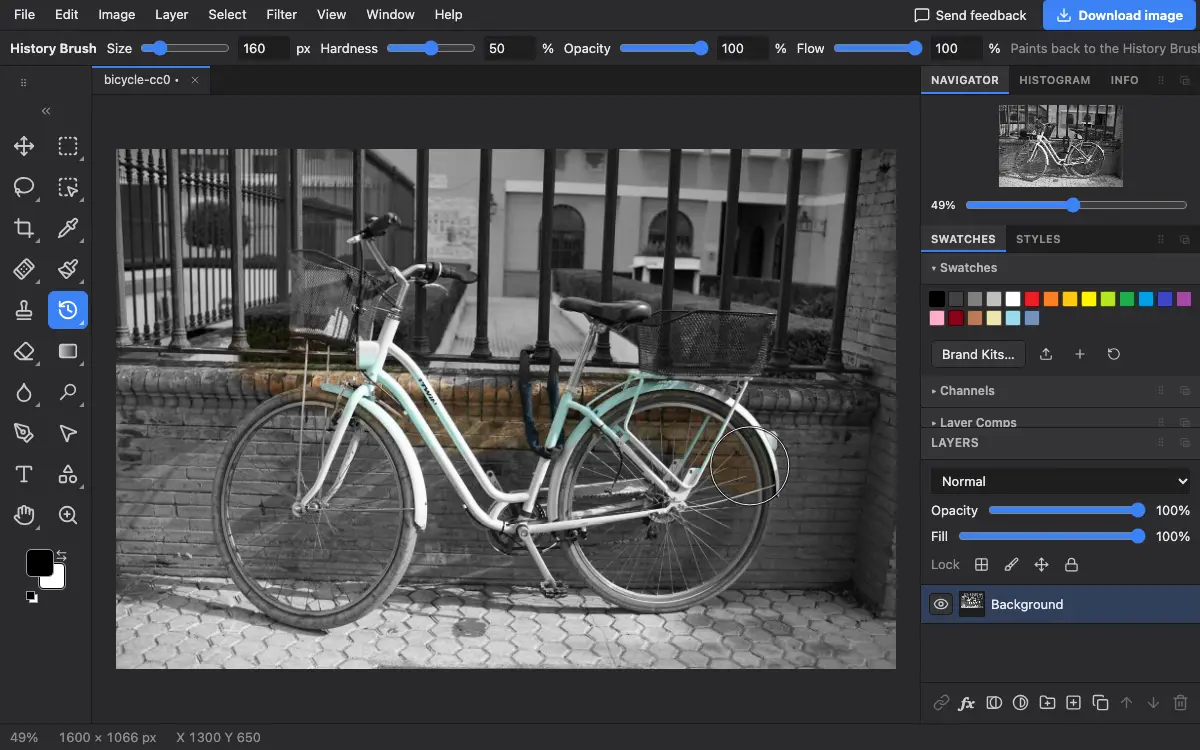
Options bar settings
Tips and common mistakes
- The History panel shows the current source as Brush source. Check it if the brush paints back further than you meant.
- For edits you may want to change later, a layer mask is more flexible; the History Brush changes the pixels.
Related
Photostar is a free online Photoshop alternative that runs in your browser. There is no account to make, and your files stay on your device.
Checked in the current editor.