

How to use the Art History Brush tool
The Art History Brush repaints the picture with stylised strokes taken from an earlier state, for a hand-painted look.
Where to find it
It is in the toolbar, in one slot with History Brush. Right-click the slot, or press and hold it, to choose between them. Press Shift+Y until it is selected (Y on its own picks History Brush).
How to use it
- Choose the tool. Press Shift+Y until it is selected, or right-click the history brush slot and pick Art History Brush.
- Pick a style. In Style, choose Dabs, Short strokes or Long strokes.
- Paint over the picture. Each dab scatters strokes coloured from the source state across the Area around the brush.
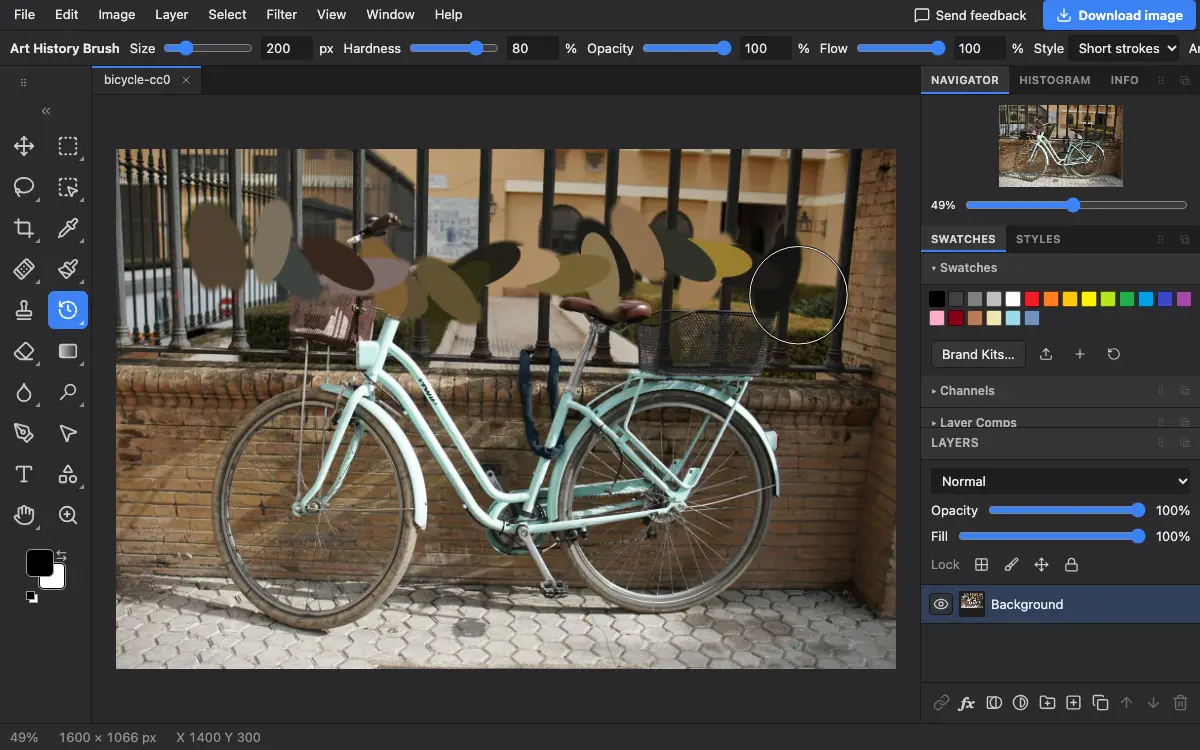
Options bar settings
Tips and common mistakes
- Use a large size with Long strokes for the background and a small size for the details.
- Paint on a copy of the layer, so you can lower its opacity and let some of the photo show through.
Related
Photostar is a free online Photoshop alternative that runs in your browser. There is no account to make, and your files stay on your device.
Checked in the current editor.