

How to use the Direct Selection tool
The Direct Selection tool edits a path or shape after you draw it: move single points, bend curves with their handles, or remove points.
Where to find it
It has its own button in the toolbar. Press A to pick it.
How to use it
- Choose the tool. Press A, or click the white arrow in the toolbar.
- Click the shape or path. Its points appear.
- Drag a point or handle. Move a point, or drag a handle to change the curve. Shift keeps the move at 45 degree steps.
- Change or delete points. Alt-click (Option-click on a Mac) a point to switch between corner and smooth. Select a point and press Delete to remove it.
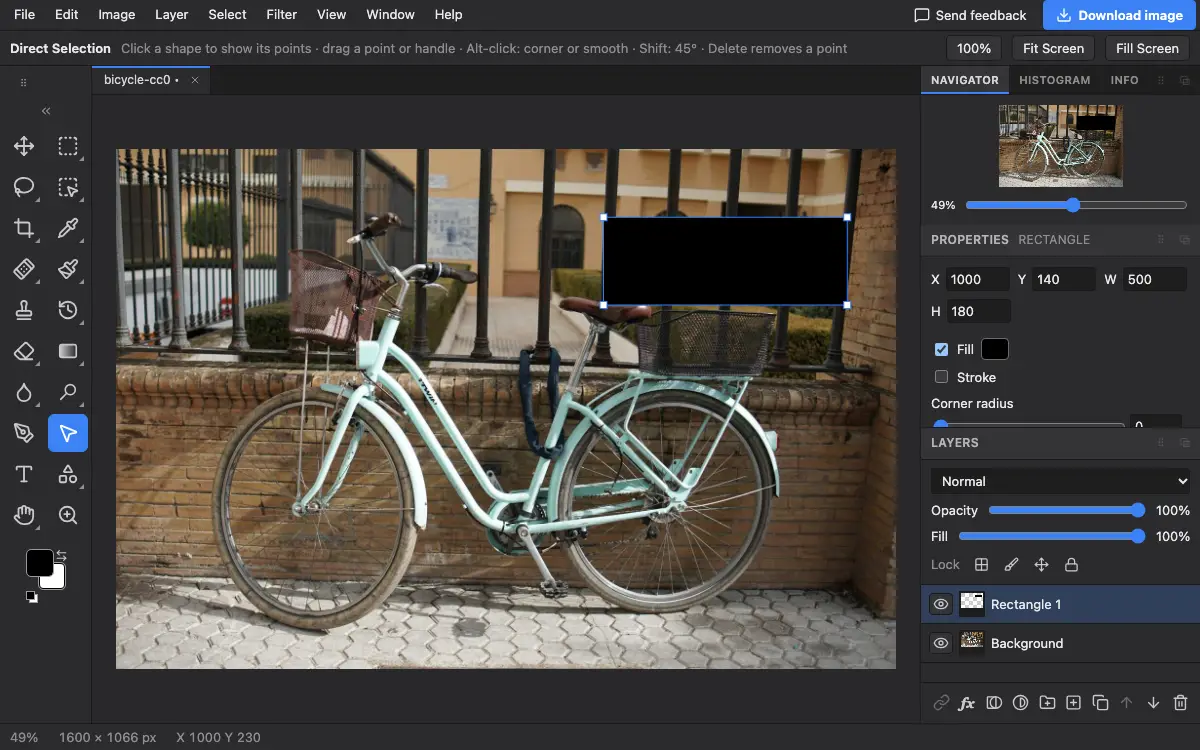
Options bar settings
This tool has no settings of its own: the options bar only shows a short reminder of what the keys do.
Tips and common mistakes
- The options bar only shows hints for this tool; everything is done on the canvas.
- To change the size or angle of a whole shape, use Edit → Free Transform instead of moving every point.
Related
Photostar is a free online Photoshop alternative that runs in your browser. There is no account to make, and your files stay on your device.
Checked in the current editor.