

How to use the Color Replacement tool
The Color Replacement tool recolours what you paint over. It changes colours like the one under the brush centre to the foreground colour, and keeps the light and shade.
Where to find it
It is in the toolbar, in one slot with Brush, Pencil and Mixer Brush. Right-click the slot, or press and hold it, to choose between them. Press Shift+B until it is selected (B on its own picks Brush).
How to use it
- Choose the tool. Press Shift+B until it is selected, or right-click the brush slot in the toolbar and pick Color Replacement.
- Pick the new colour. Set the foreground colour to the colour you want.
- Paint over the object. Keep the crosshair in the middle of the brush on the colour to change. Colours like it take on the new one, and others are left alone.
- Adjust and repeat. Raise Tolerance if parts are missed, lower it if the colour spills onto other things.
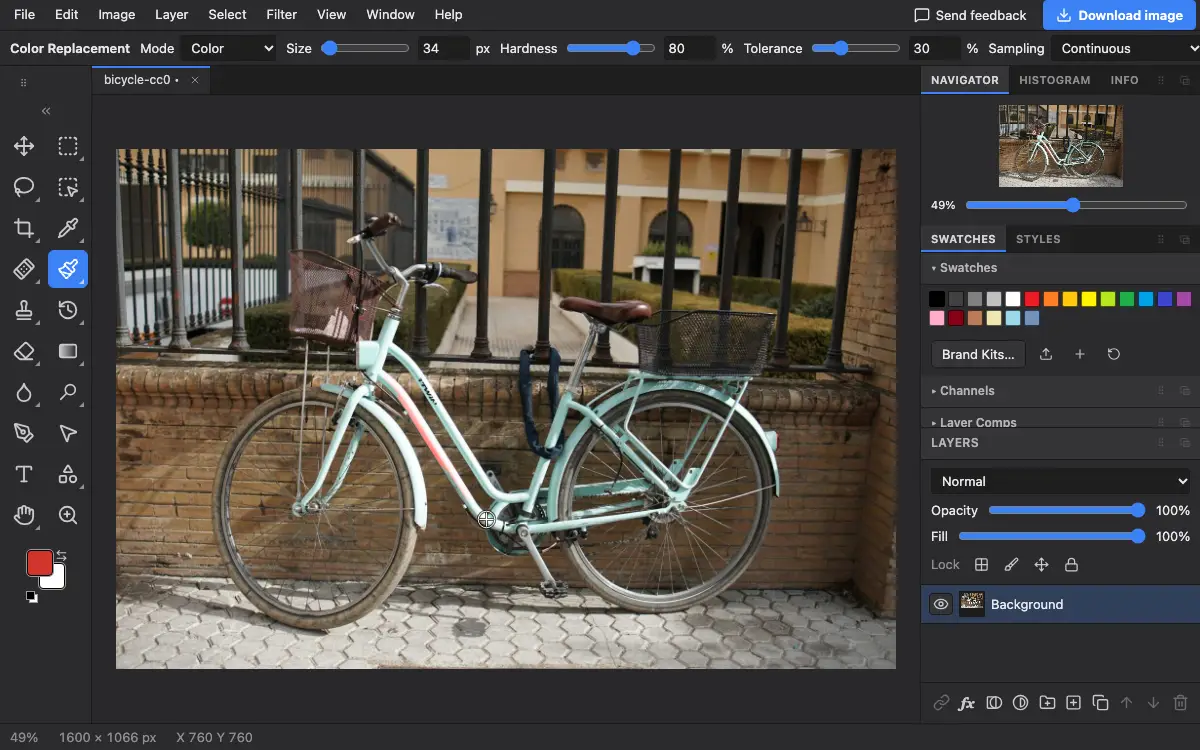
Options bar settings
Tips and common mistakes
- Very dark or very light areas change little, because the tool keeps their brightness. Pick a new colour of similar lightness.
- Duplicate the layer first so you can compare or undo with the layer visibility.
Related
Photostar is a free online Photoshop alternative that runs in your browser. There is no account to make, and your files stay on your device.
Checked in the current editor.