

How to use the Burn tool
The Burn tool darkens the areas you paint over. Use it to deepen shadows, add shape, or tone down a bright spot.
Where to find it
It is in the toolbar, in one slot with Dodge and Sponge. Right-click the slot, or press and hold it, to choose between them. Press Shift+O until it is selected (O on its own picks Dodge).
How to use it
- Choose the tool. Press Shift+O until it is selected, or right-click the dodge slot and pick Burn.
- Pick a range. Choose Midtones, Shadows or Highlights. Highlights is good for taming a bright patch of sky or skin.
- Set a low Exposure. Start around 10 to 20%.
- Paint. Brush over the areas to darken, building up slowly.
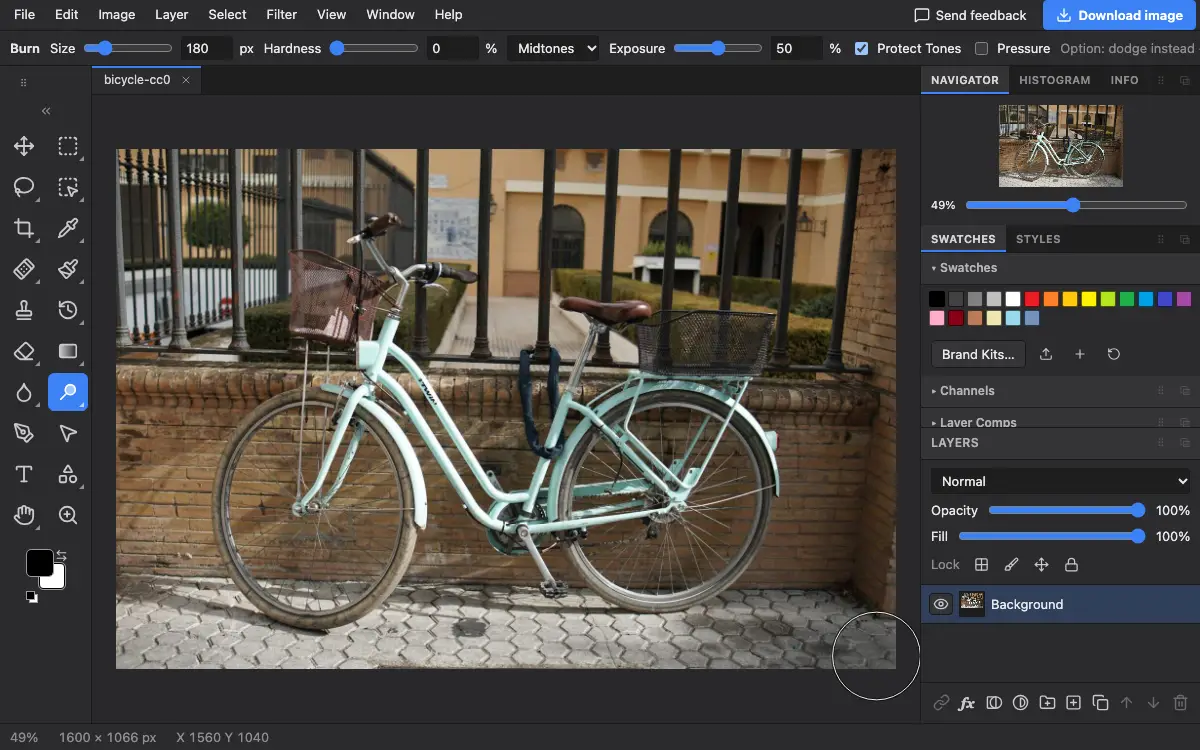
Options bar settings
Tips and common mistakes
- Hold Alt (Option on a Mac) to dodge instead.
- Burning the edges of a photo a little draws the eye to the middle, like a vignette.
Related
Photostar is a free online Photoshop alternative that runs in your browser. There is no account to make, and your files stay on your device.
Checked in the current editor.