

How to use the Red Eye tool
The Red Eye tool turns red pupils from a camera flash back to dark with a click. Other colours around the eye are left alone.
Where to find it
It is in the toolbar, in one slot with Spot Healing Brush, Remove, Healing Brush, Patch and Content-Aware Move. Right-click the slot, or press and hold it, to choose between them. Press Shift+J until it is selected (J on its own picks Spot Healing Brush).
How to use it
- Choose the tool. Press Shift+J until it is selected, or right-click the healing slot and pick Red Eye.
- Zoom in on the eyes. Get close enough to see each pupil clearly.
- Click each red pupil. Click on the red, or drag a box round the eye.
- Adjust and redo if needed. Undo, change the settings, and click again if the result is too light or spreads too far.
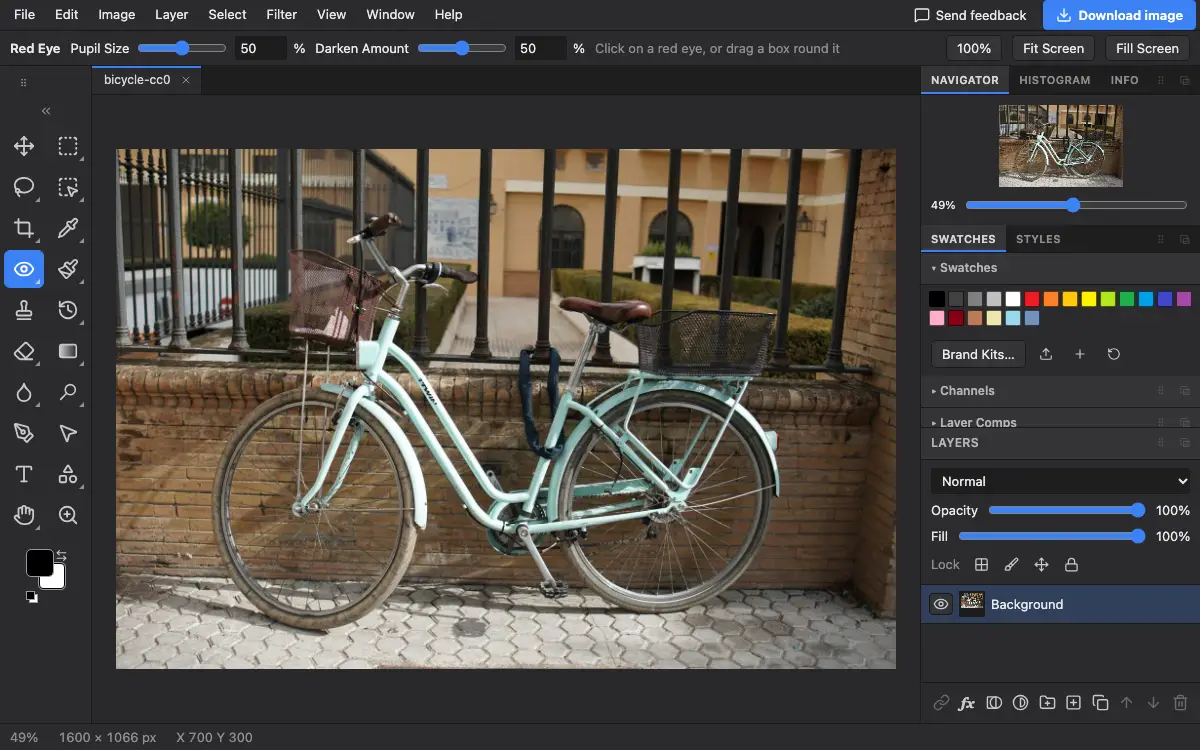
Options bar settings
Tips and common mistakes
- It looks for red only. Green or white eye shine from pets needs the Brush or the Burn tool instead.
- If a red highlight is left at the edge, raise Pupil Size a little and click again.
Related
Photostar is a free online Photoshop alternative that runs in your browser. There is no account to make, and your files stay on your device.
Checked in the current editor.