

How to use the Dodge tool
The Dodge tool lightens the areas you paint over, like the darkroom trick of holding back light from part of a print.
Where to find it
It is in the toolbar, in one slot with Burn and Sponge. Right-click the slot, or press and hold it, to choose between them. Press O to pick it, and Shift+O to step through the other tools on that key.
How to use it
- Choose the tool. Press O, or click the paddle icon in the toolbar.
- Pick a range. Choose Midtones for most jobs, Shadows to open up dark areas, or Highlights for bright ones.
- Set a low Exposure. Start around 10 to 20% so the change builds up gently.
- Paint. Brush over the areas to lighten. Each stroke goes up to the exposure; paint again for more.
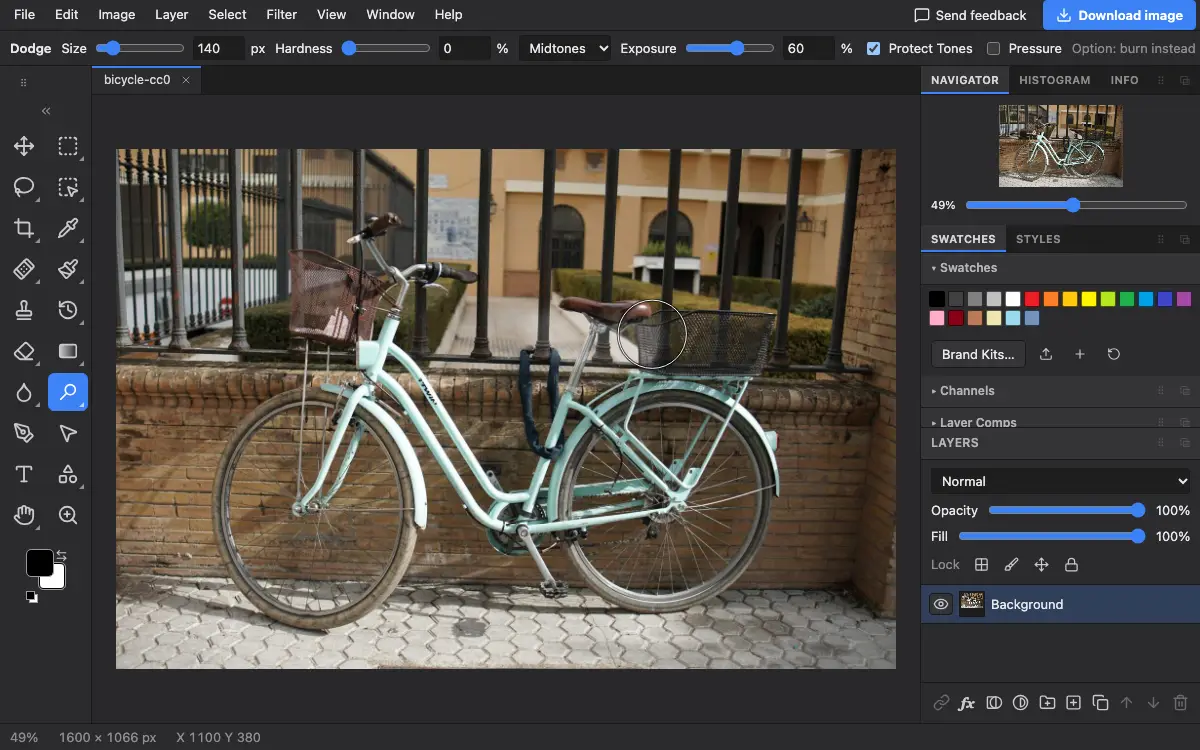
Options bar settings
Tips and common mistakes
- Hold Alt (Option on a Mac) to burn instead.
- For a change you can undo at any time, paint on a 50% grey layer set to Overlay with a soft brush instead.
Related
Photostar is a free online Photoshop alternative that runs in your browser. There is no account to make, and your files stay on your device.
Checked in the current editor.