

Open TGA files and convert them to PNG
TGA (Targa) files are still common for game textures, 3D renders and video titles, but browsers and most phone apps cannot show them. Photostar opens TGA files in your browser and keeps their transparency.
Photostar is a free online Photoshop alternative that runs in your browser. There is no account to make, and your files stay on your device.
Open a TGA fileOpens the free editor. Nothing is uploaded.How to do it
- Open the TGA. Use the button above, or drop the .tga file onto Photostar.
- Check the transparency. Transparent areas show as a grey checkerboard, so you can see the alpha channel came through.
- Save it. Choose File → Export As. Pick PNG to keep transparency, or TGA to save a Targa file again after editing.
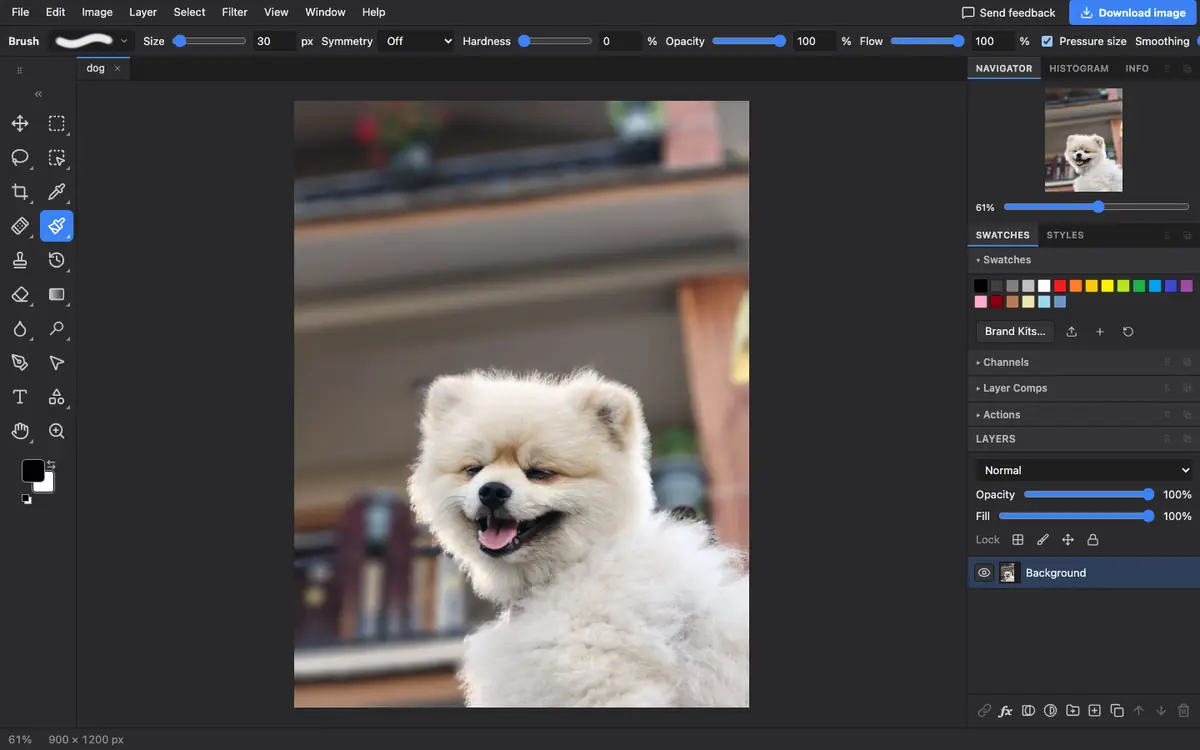
What is supported
What works
- True colour, greyscale and colour-mapped TGA files
- Run-length compressed TGA
- Alpha channels
- Saving TGA, PNG, JPEG and more
Limits
- Only the main image opens; any thumbnail stored in the file is ignored
- JPEG cannot keep transparency, so use PNG or TGA for textures
Questions
How do I open a TGA file?
Open it in Photostar in any web browser. It reads Targa files on your device, including the alpha channel.
How do I convert TGA to PNG?
Open the TGA in Photostar, choose File → Export As, pick PNG and click Export. Transparency is kept.
Can I edit a TGA and save it as TGA?
Yes. Edit it, then choose TGA in File → Export As.
Related
Reviewed , with a real file of this kind in the current editor.