

Convert PNG to ICO for a favicon
Websites and Windows shortcuts use .ico icon files, which hold several sizes of the same picture. Photostar saves an ICO from any image, with every standard size from 16 to 256 pixels in one file.
Photostar is a free online Photoshop alternative that runs in your browser. There is no account to make, and your files stay on your device.
Open your logoOpens the free editor. Nothing is uploaded.How to do it
- Open your logo. Use the button above, or drop the PNG or SVG onto Photostar. A square image with a transparent background works best.
- Make it square. If it is not square, use Image → Canvas Size to add space so the width and height match.
- Export as ICO. Choose File → Export As, pick ICO and click Export.
- Add it to your site. Upload favicon.ico to the top folder of your website. Most browsers look for it there.
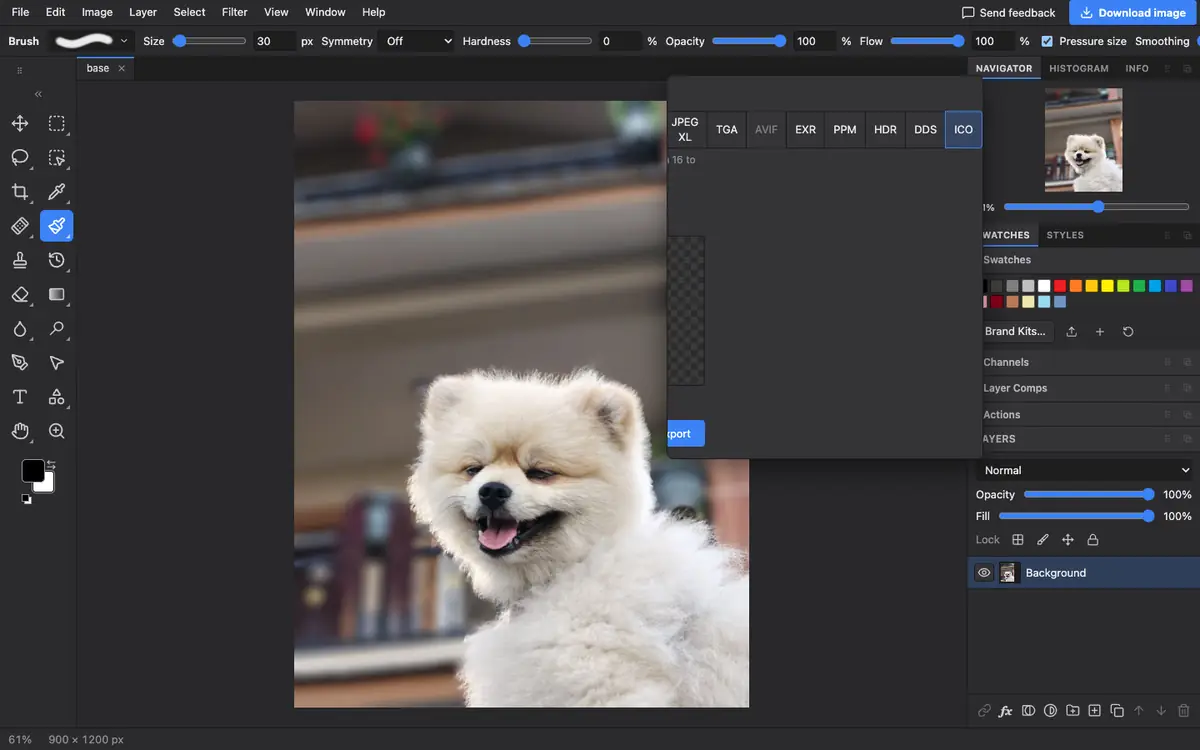
What is supported
What works
- ICO files with 16, 32, 48, 64, 128 and 256 pixel sizes
- Transparent backgrounds
- Starting from PNG, SVG, JPEG, WebP and more
Limits
- Photostar saves ICO but cannot open .ico files
- A non-square image is fitted into square sizes, so square it first for the best result
- Fine detail disappears at 16 pixels, so simple logos work best
Questions
How do I convert PNG to ICO?
Open the PNG in Photostar, choose File → Export As, pick ICO and click Export. The .ico holds six sizes from 16 to 256 pixels.
What size should a favicon be?
Start from a square image of at least 256 × 256 pixels. The ICO file then carries the smaller sizes browsers use.
Does the ICO keep transparency?
Yes. Transparent areas of your PNG stay transparent in every size.
Related
Reviewed , with a real file of this kind in the current editor.