

How to use the Zoom tool
The Zoom tool magnifies the part of the picture you click on, so you can check and work on fine detail.
Where to find it
It has its own button in the toolbar. Press Z to pick it.
How to use it
- Choose the tool. Press Z, or click the magnifier in the toolbar.
- Click to zoom in. Click on the spot you want to see closer. Each click zooms one step, centred on the click.
- Alt-click to zoom out. Hold Alt (Option on a Mac) and click.
- Jump to a set size. Click 100% for actual pixels or Fit Screen to see the whole picture.
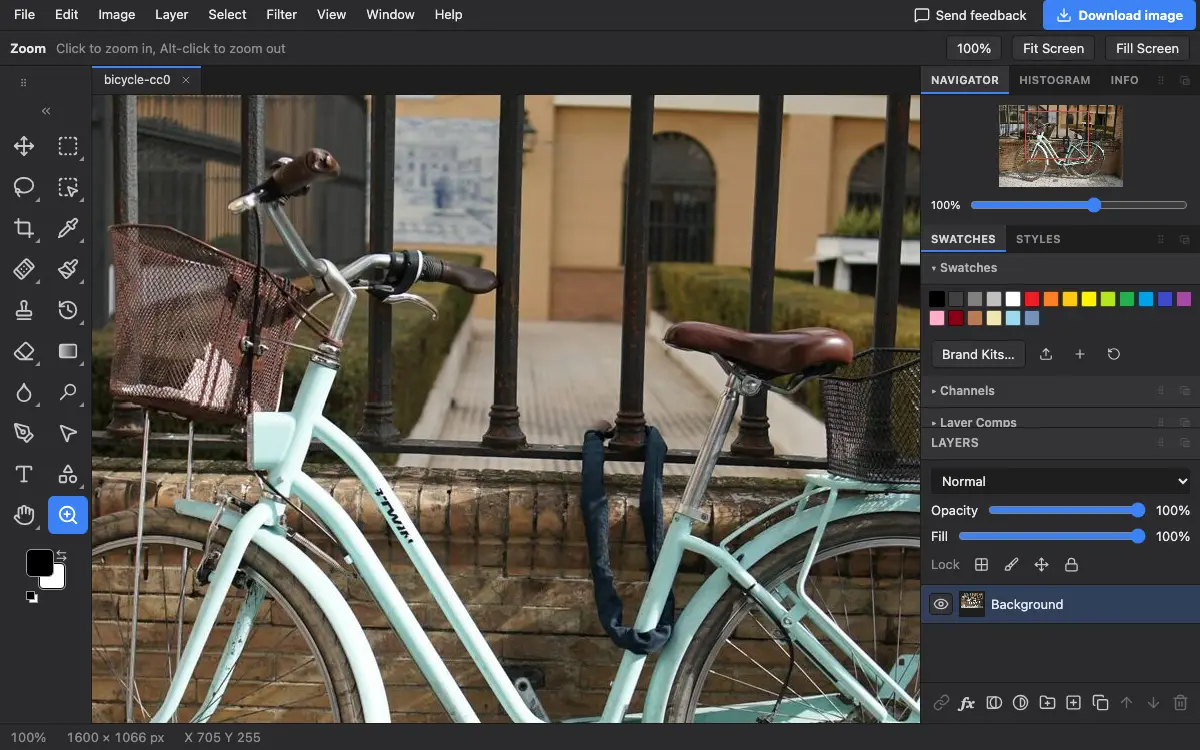
Options bar settings
Tips and common mistakes
- From any tool, Ctrl and + or Ctrl and - (Cmd on a Mac) zoom in and out, and Ctrl+0 fits the picture on screen.
- Judge sharpness and retouching at 100%. Smaller views hide problems and larger ones exaggerate them.
Related
Photostar is a free online Photoshop alternative that runs in your browser. There is no account to make, and your files stay on your device.
Checked in the current editor.