

How to use the Slice Select tool
The Slice Select tool picks a slice you have already drawn so you can move it, resize it, rename it or delete it.
Where to find it
It is in the toolbar, in one slot with Crop and Slice. Right-click the slot, or press and hold it, to choose between them. Press Shift+C until it is selected (C on its own picks Crop).
How to use it
- Choose the tool. Press Shift+C until it is selected, or right-click the crop slot and pick Slice Select.
- Click a slice. Click inside a numbered slice to select it.
- Move or resize it. Drag inside it to move it, or drag an edge or corner to change its size.
- Rename or delete it. Type a new name in the options bar, or click Delete Slice.
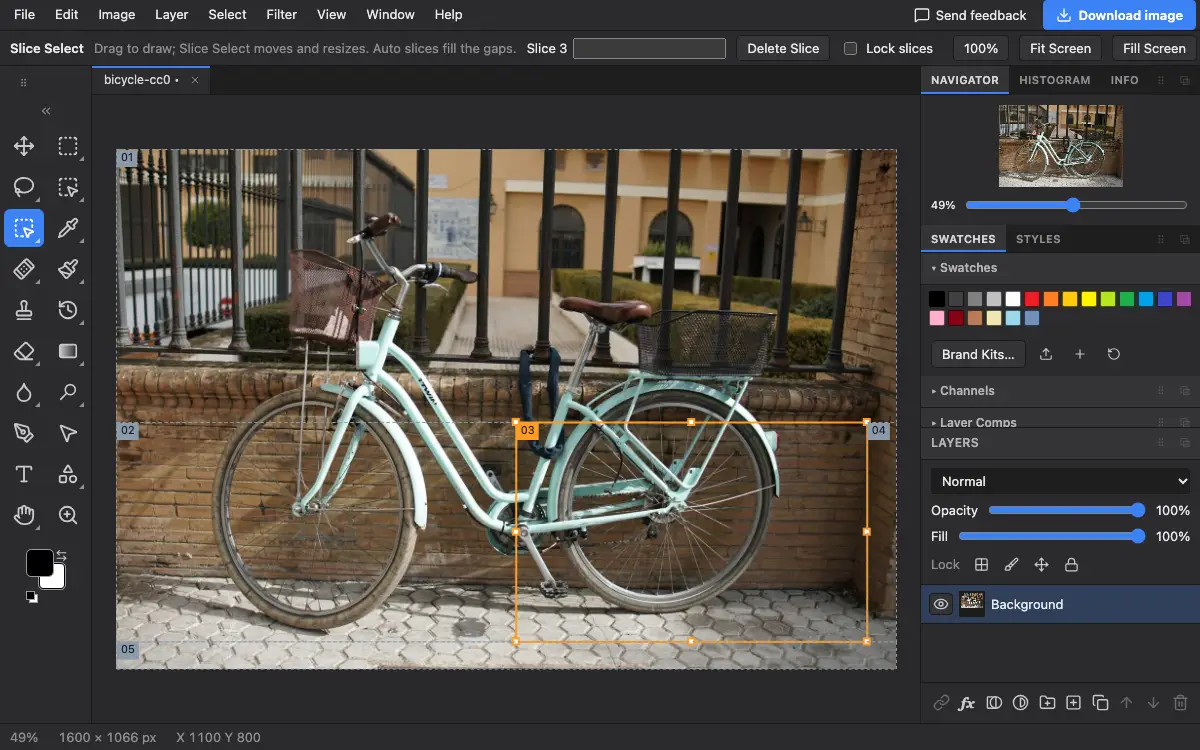
Options bar settings
Tips and common mistakes
- A slice that came in with an imported file becomes an ordinary slice once you move or resize it.
- If nothing moves when you drag, check that Lock slices is off.
Related
Photostar is a free online Photoshop alternative that runs in your browser. There is no account to make, and your files stay on your device.
Checked in the current editor.