

How to use the Sharpen tool
The Sharpen tool adds crispness only where you paint, such as eyes, lettering or the edges of a product.
Where to find it
It is in the toolbar, in one slot with Blur and Smudge. Right-click the slot, or press and hold it, to choose between them. It has no shortcut key.
How to use it
- Choose the tool. Right-click the drop icon in the toolbar and pick Sharpen. It has no shortcut key.
- Turn on Protect Detail. Leave Protect Detail on to keep noise and halos down.
- Paint lightly. Drag over the details. Go over them again only if they need more.
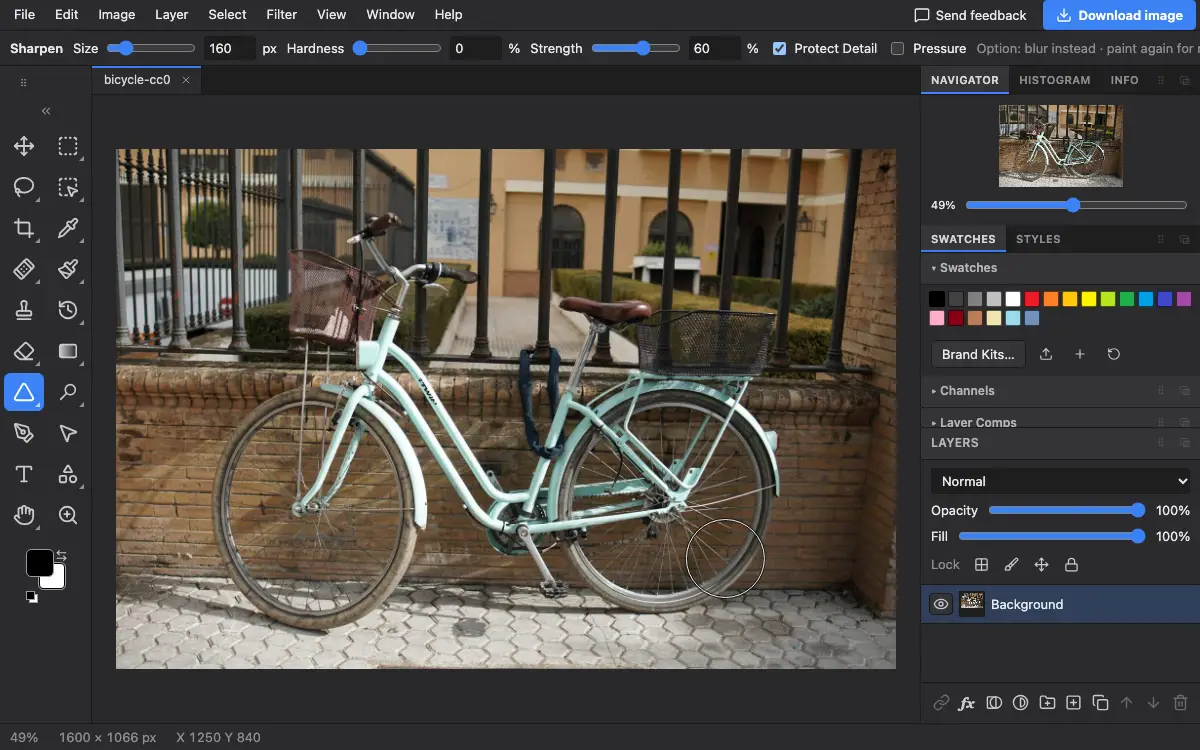
Options bar settings
Tips and common mistakes
- Sharpening too much makes grainy speckles and white outlines. View at 100% to judge it.
- Hold Alt (Option on a Mac) to blur instead.
Related
Photostar is a free online Photoshop alternative that runs in your browser. There is no account to make, and your files stay on your device.
Checked in the current editor.