

Upscale an image with AI
Enlarging a small photo normally makes it blurry. Photostar’s AI Upscale uses a model that runs on your own device to add detail as it makes the picture two or four times bigger.
Photostar is a free online Photoshop alternative that runs in your browser. There is no account to make, and your files stay on your device.
Choose an image to enlargeOpens the free editor. Nothing is uploaded.How to do it
- Open the image. Use the button above or drop the image onto Photostar.
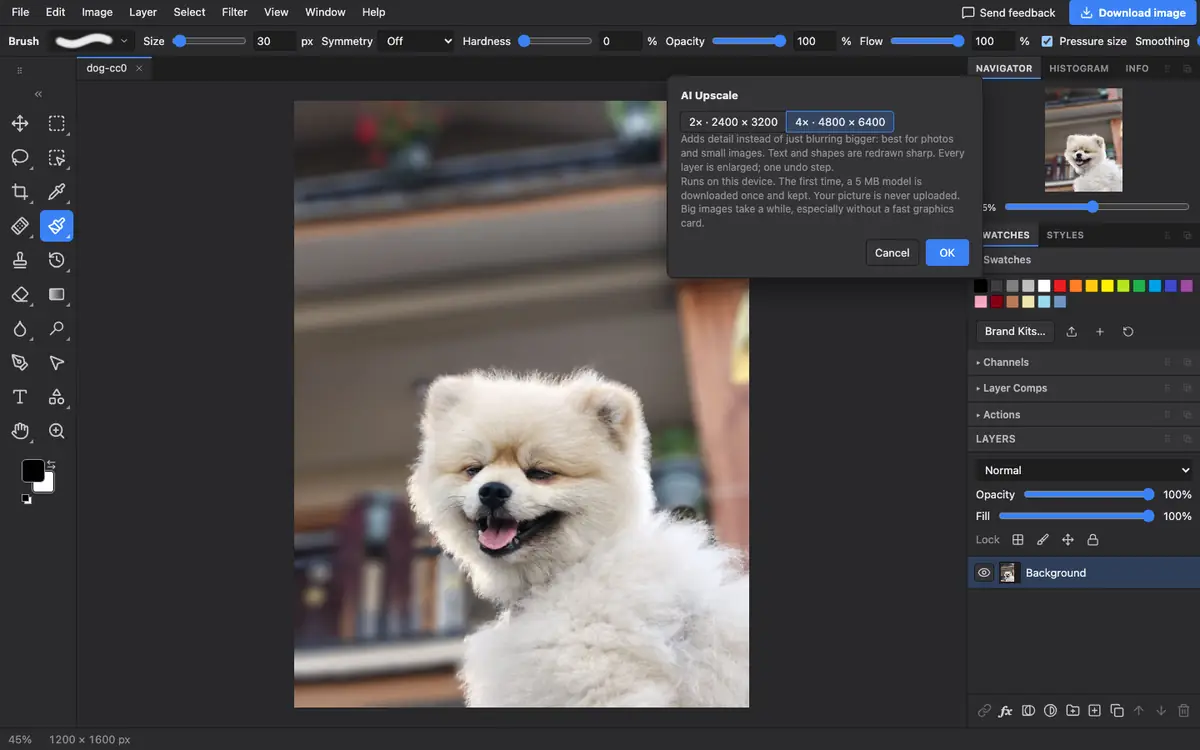
- Open AI Upscale. Choose Image → AI Upscale.
- Pick 2× or 4×. The buttons show the new size in pixels. Sizes that would be too big for a browser are greyed out.
- Wait for it. Click OK. The first time, a 5 MB model downloads once and is kept. Big images take a while without a fast graphics card.
- Save. Click Download image, or use File → Export As.
What to expect
Upscaling works best on photos and small images such as old web pictures. It adds believable texture, not true detail, so it cannot read a number plate that was never sharp. Text and shape layers are redrawn sharp rather than upscaled. The result can be up to 64 megapixels. 16-bit images need converting to 8-bit first with Image → Mode → 8 Bits/Channel.
Questions
How do I upscale an image for free?
Open it in Photostar, choose Image → AI Upscale, pick 2× or 4× and click OK. Then download it.
Is my photo uploaded to an AI server?
No. The AI model runs in your browser. Only the model itself is downloaded, once.
How big can the result be?
Up to 64 megapixels, for example 8000 × 8000. Larger choices are greyed out.
Why is it slow?
The AI runs on your own computer. A fast graphics card helps; on a phone or older laptop a large image can take minutes.
Related
Reviewed , with a real photo in the current editor.