

How to use the Smudge tool
The Smudge tool drags colour along with the stroke, like a finger pulled through wet paint.
Where to find it
It is in the toolbar, in one slot with Blur and Sharpen. Right-click the slot, or press and hold it, to choose between them. It has no shortcut key.
How to use it
- Choose the tool. Right-click the drop icon in the toolbar and pick Smudge. It has no shortcut key.
- Set the strength. Lower Strength gives short smears; higher pulls colour a long way.
- Drag. Drag in the direction you want the colour to move. Shift-click to smudge in a straight line.
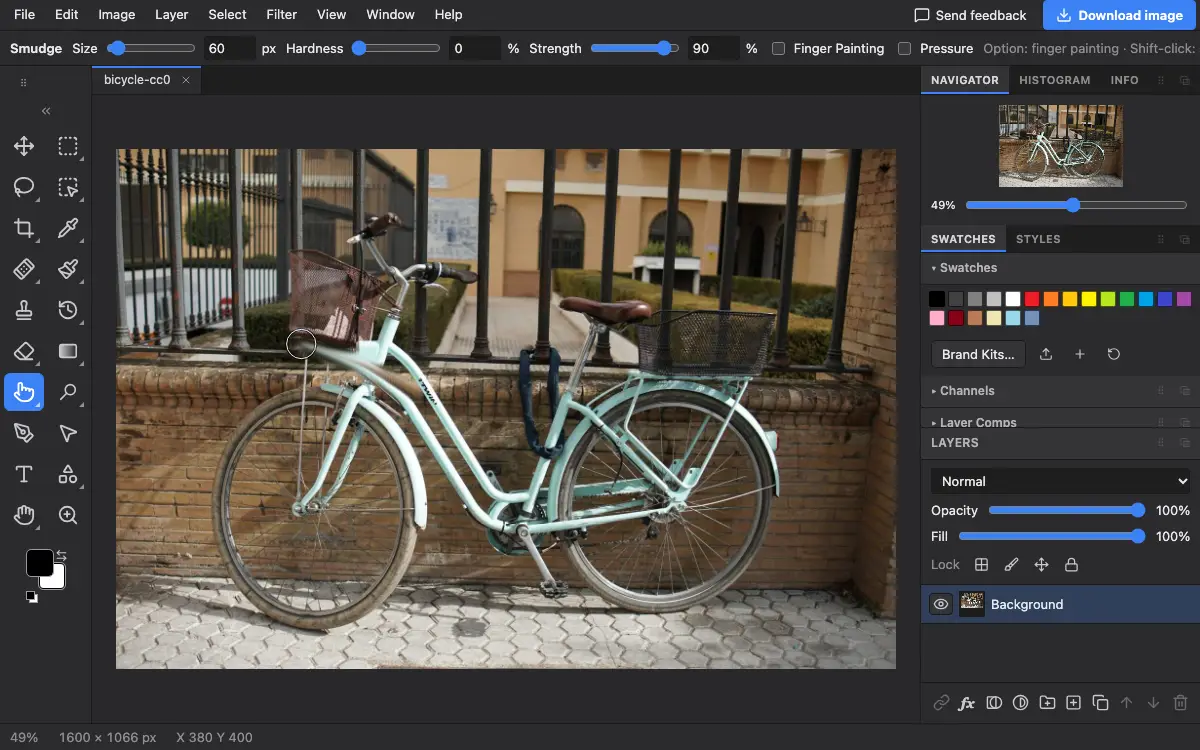
Options bar settings
Tips and common mistakes
- Use small, short strokes for wisps of hair or smoke; long strokes look like streaks.
- For mixing colours more like real paint, the Mixer Brush gives more control.
Related
Photostar is a free online Photoshop alternative that runs in your browser. There is no account to make, and your files stay on your device.
Checked in the current editor.