

How to use the Gradient tool
The Gradient tool fills a layer or selection with a smooth blend between colours. The line you drag sets its direction and length.
Where to find it
It is in the toolbar, in one slot with Paint Bucket. Right-click the slot, or press and hold it, to choose between them. Press G to pick it, and Shift+G to step through the other tools on that key.
How to use it
- Choose the tool. Press G, or click the gradient swatch in the toolbar.
- Pick the colours. Click the gradient preview at the start of the options bar to choose a preset or edit the colours. The first preset runs from foreground to background colour.
- Pick a type. Choose Linear, Radial, Angle, Reflected or Diamond.
- Drag. Drag across the canvas from where the gradient starts to where it ends. Hold Shift for 45 degree steps.
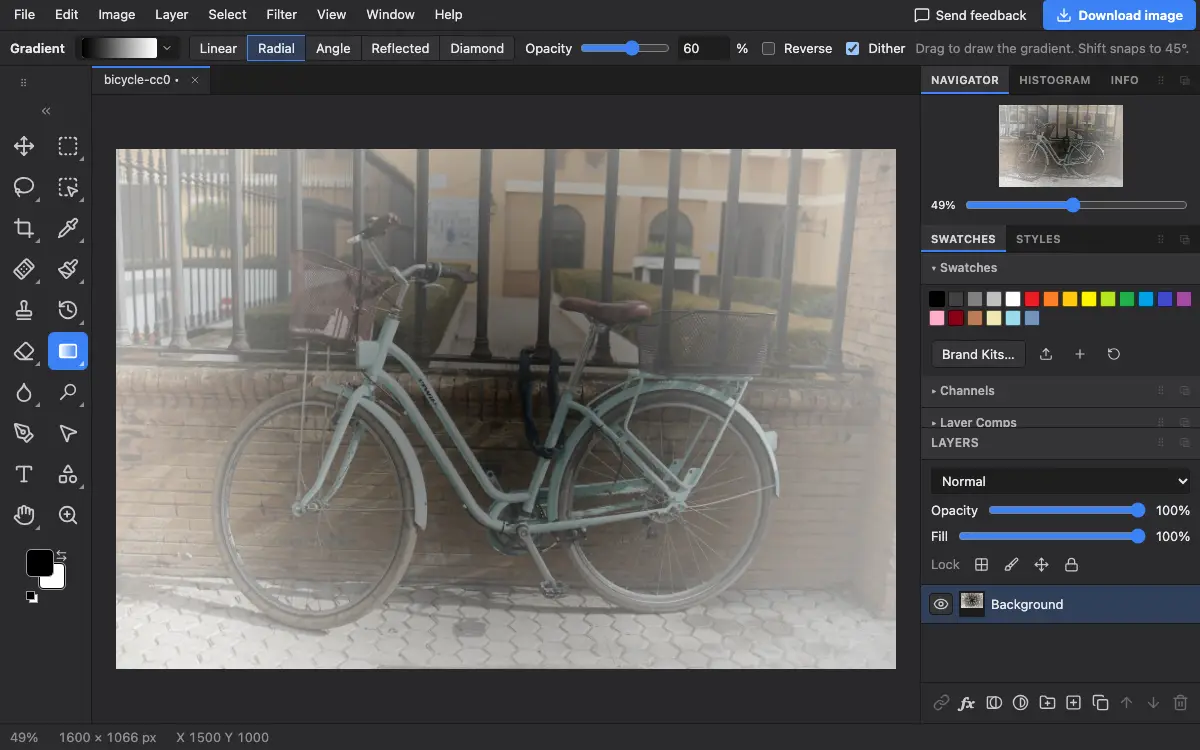
Options bar settings
Tips and common mistakes
- Draw gradients on a new layer, then change its blend mode or opacity in the Layers panel.
- To fade a photo out gradually, select its layer mask and drag a black to white gradient across it.
Related
Photostar is a free online Photoshop alternative that runs in your browser. There is no account to make, and your files stay on your device.
Checked in the current editor.