

Make a photo black and white
A plain desaturate can make a photo look flat. Photostar’s Black & White adjustment lets you decide how light or dark each colour becomes in grey, the same way photographers use coloured filters.
Photostar is a free online Photoshop alternative that runs in your browser. There is no account to make, and your files stay on your device.
Choose a photoOpens the free editor. Nothing is uploaded.How to do it
- Open the photo. Use the button above or drop the photo onto Photostar.
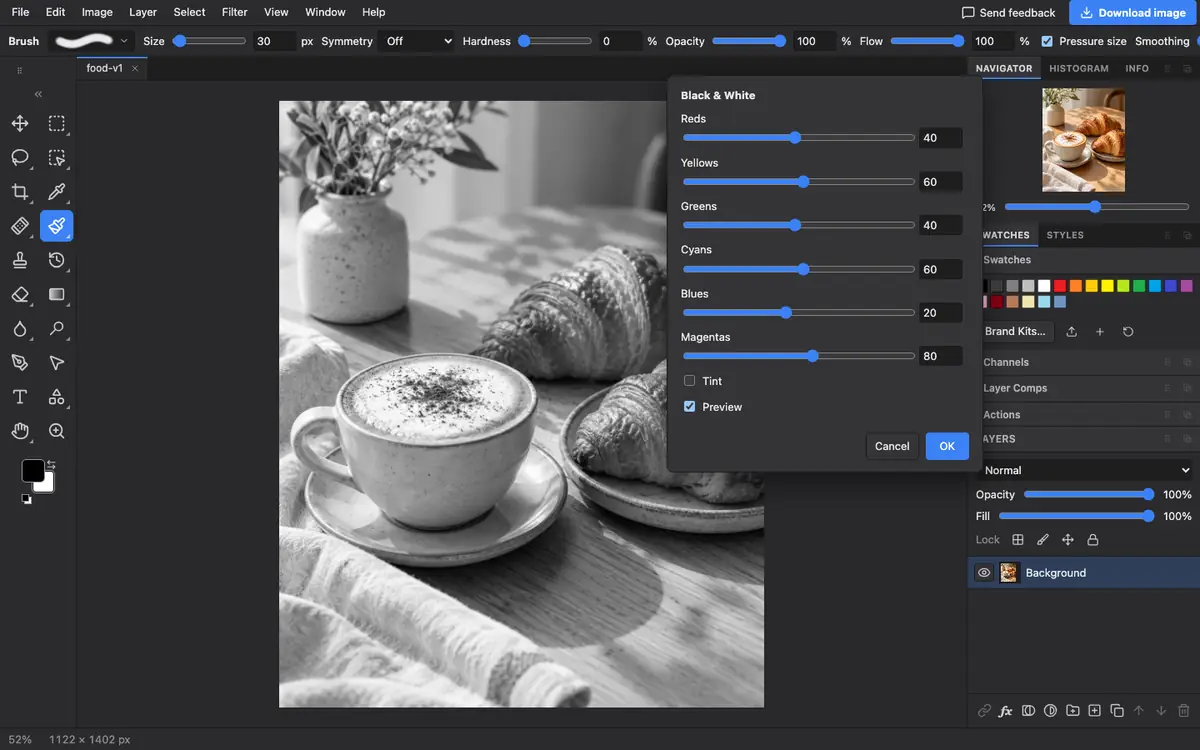
- Open Black & White. Choose Image → Adjustments → Black & White, or press Alt+Shift+Ctrl+B (Option+Shift+Cmd+B on a Mac).
- Shape the tones. Drag the Reds, Yellows, Greens, Cyans, Blues and Magentas sliders. Lowering Blues darkens a sky; raising Reds lightens skin.
- Add a tint if you like. Tick Tint for a sepia or cool tone, then click OK.
- Save it. Click Download image, or use File → Export As.
Quicker and softer options
Image → Adjustments → Desaturate turns a photo grey in one step. To keep the change editable, use Layer → New Adjustment Layer → Black & White instead; you can then lower its opacity to leave a little colour, or paint on its mask to keep one object in colour.
Questions
How do I make a picture black and white?
Open it in Photostar and choose Image → Adjustments → Black & White, then click OK. Download the result.
How do I keep one colour and make the rest black and white?
Add a Black & White adjustment layer and paint black on its mask over the object you want to stay in colour.
How do I make a sepia photo?
In the Black & White window, tick Tint. The default tint is a warm sepia.
Related
Reviewed , with a real photo in the current editor.